
Setting up of WordPress SEO is easier when you know which settings actually matter.
A new WordPress website can have great content and still struggle in Google Search because of simple configuration problems, unclear URLs, poor indexing settings, missing technical signals, or weak site structure.
The good news is that most of the foundation can be handled directly from your WordPress dashboard.
This WordPress SEO setup guide walks through the essential settings step by step, from site visibility and permalinks to SEO plugins, XML sitemaps, internal links, images, mobile usability, and Google Search Console.
What is WordPress SEO setup?
WordPress SEO setup means configuring your website so search engines can crawl, understand, index, and display your content properly.
WordPress already includes several features that support search optimization, including permalinks, feeds, sitemaps, and settings that control search-engine visibility.
Your SEO setup usually covers:
- WordPress settings
- Website structure
- Permalinks and URLs
- SEO plugin configuration
- Search-engine indexing
- XML sitemaps
- On-page SEO
- Internal linking
- Image optimization
- Mobile and technical performance
- Google Search Console
- Structured data where appropriate
You don’t need to change every available setting. The goal is to create a clean foundation and avoid configurations that can prevent your important pages from appearing in search.
Step 1: Check your WordPress site visibility
Before doing anything else, make sure WordPress isn’t asking search engines to stay away from your website.
Go to:
WordPress Dashboard → Settings → Reading
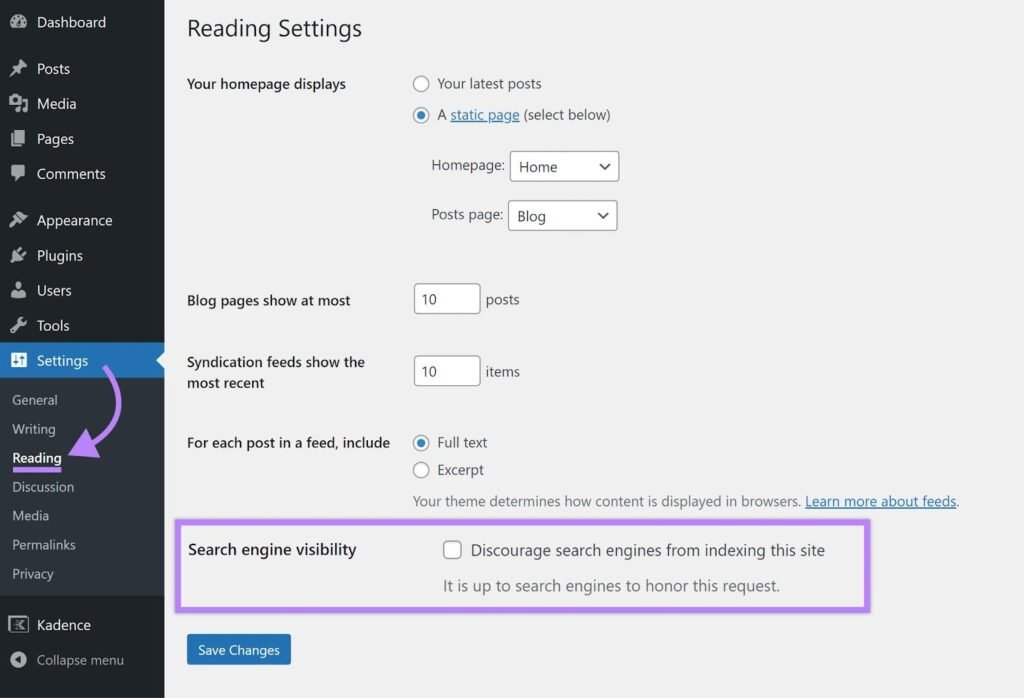
Look for Search engine visibility.
Make sure Discourage search engines from indexing this site is unchecked if your website is ready for public search.
When this option is enabled, WordPress generates a robots directive asking search engines not to index the site. It doesn’t block normal visitors from accessing your website, but search engines may follow the request.
Why this setting matters
Imagine publishing 20 useful blog posts and then discovering that your entire site has been configured to discourage indexing.
It’s an easy mistake to make, especially while building a new website.
If you’re working on a private development site, leaving this option enabled can make sense. Before launching the live website, check it again.
Step 2: Choose a clean permalink structure
Your URLs should be easy for people to understand.
Go to:
Settings → Permalinks
For most blogs, the Post name structure is a simple choice.
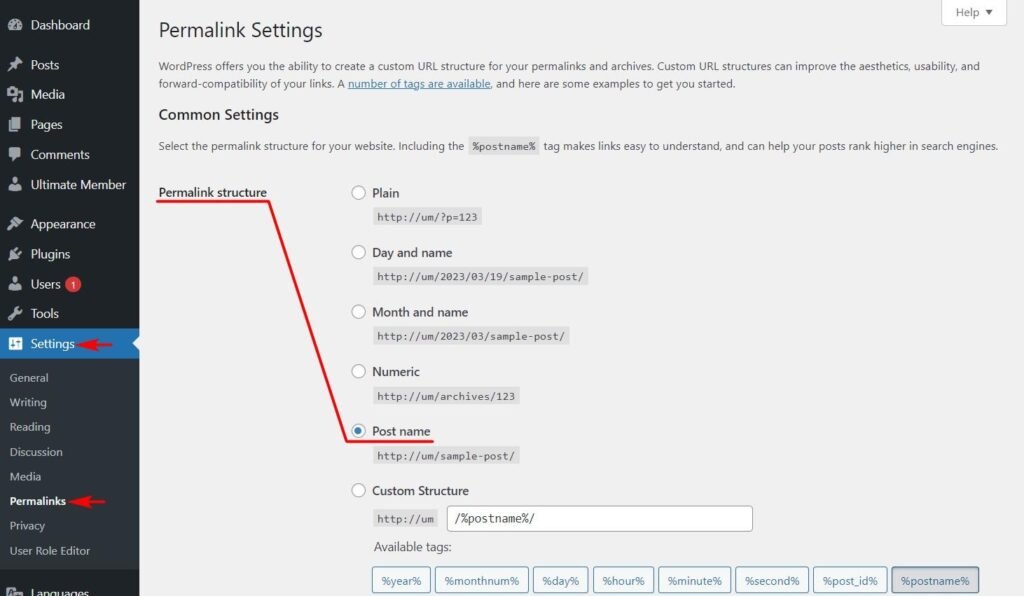
For example:
https://example.com/wordpress-seo-setup
is easier to understand than:
WordPress allows you to choose different permalink structures, including post-name URLs and custom structures.
Keep your URLs simple
A good SEO-friendly URL is usually:
- Short
- Descriptive
- Easy to read
- Closely related to the page topic
- Free from unnecessary words or numbers
For example:
Good:
/wordpress-seo-setup/
Less useful:
/2026/10/02/the-ultimate-guide-to-setting-up-wordpress-for-seo/
Don’t repeatedly change URLs on an established website just to make them shorter.
Changing an existing URL can break links and create indexing problems if redirects aren’t handled correctly.
Step 3: Set your site title and tagline
Go to:
Settings → General
Review your:
- Site Title
- Tagline
- WordPress Address
- Site Address
- Administration Email Address
- Site Language
- Timezone
Your site title should clearly identify your website or brand.
Your tagline can briefly explain what the website is about.
For example:
Site Title: Maryam SEO
Tagline: Practical SEO and WordPress guides
Avoid stuffing keywords into your site title or tagline.
These settings should describe the website naturally.
Step 4: Install one SEO plugin
An SEO plugin can make many WordPress SEO tasks easier.
Popular options include:
- Yoast SEO
- Rank Math
- All in One SEO
Choose one main SEO plugin rather than installing several plugins that perform the same functions.
For example, Yoast SEO adds SEO settings at the site, post, page, and taxonomy levels, while its first-time configuration walks users through settings such as site representation and social profiles.
Rank Math also provides a setup wizard that helps configure its essential SEO settings after installation.
How to install an SEO plugin
From your WordPress dashboard:
Plugins → Add Plugin
Search for your chosen SEO plugin.
Then:
- Click Install Now
- Click Activate
- Open the plugin’s setup or configuration area
- Complete the initial settings
- Review the defaults before publishing content
For Yoast SEO, the WordPress plugin directory installation process follows this same basic dashboard workflow.
Step 5: Configure your SEO plugin carefully
Don’t switch on every feature simply because it’s available.
Start with the settings that affect your site’s basic search appearance.
Set your site representation
Tell the plugin whether the website represents:
- A person
- An organization
- A business
- Another appropriate entity type
Use the actual information about your website.
Yoast’s current configuration process uses this information to generate structured data that helps search engines understand the site.
Review content types
Check how your plugin handles:
- Posts
- Pages
- Categories
- Tags
- Author archives
- Date archives
- Media or attachment pages
- Custom post types, if applicable
You generally want useful, unique pages available for indexing.
Thin or unnecessary archive pages may need different treatment depending on the site.
Don’t blindly set everything to noindex.
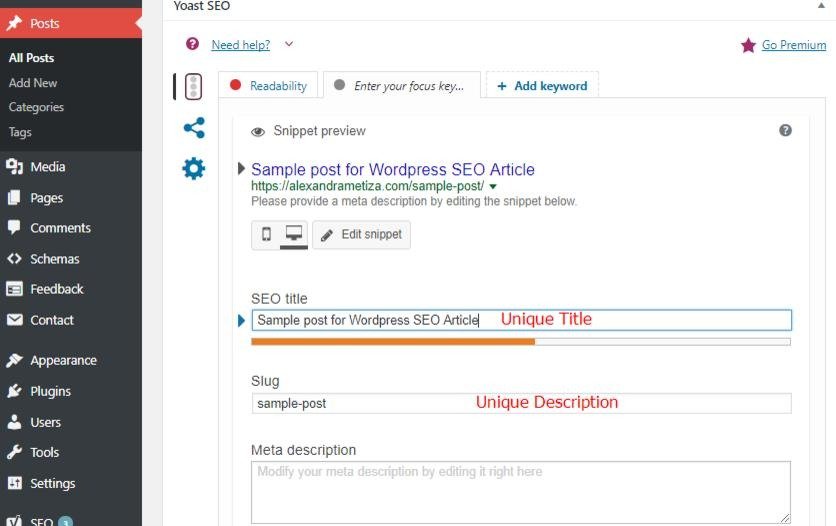
Step 6: Create useful SEO titles and meta descriptions
For every important page and post, create a clear search title.
For example:
SEO title:
WordPress SEO Setup: Complete Guide for Beginners
Meta description:
Learn how to set up WordPress for SEO, including permalinks, indexing, SEO plugins, sitemaps, internal links, images, and Search Console.
Your title should accurately describe the page.
Your meta description should explain why someone would find the page useful.
Avoid repeating the same title and description across dozens of pages.
Also remember that Google can generate its own search-result title or snippet when it determines that another version better represents the page. SEO fields are useful controls, not guarantees.
Step 7: Check your XML sitemap
An XML sitemap helps search engines discover URLs on your website.
Many WordPress SEO plugins generate XML sitemaps automatically.
After activating your SEO plugin, look for its sitemap feature and check that your important content types are included.
You can often access the sitemap at a URL similar to:
https://example.com/sitemap_index.xml
or:
https://example.com/wp-sitemap.xml
The exact URL depends on your WordPress configuration and plugins.
Don’t create multiple competing sitemap systems unless you have a specific reason to do so.
Step 8: Connect Google Search Console
Google Search Console should be part of your WordPress SEO setup.
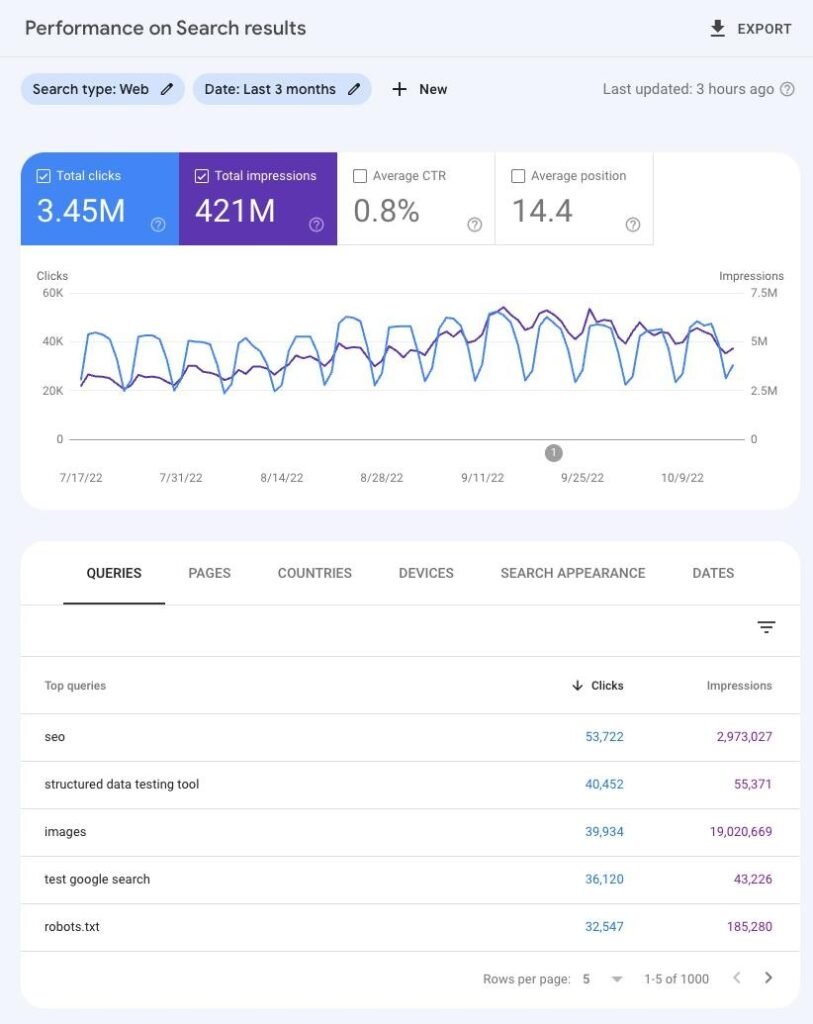
It helps website owners understand how their pages perform in Google Search and identify indexing-related issues. Google describes Search Console as a tool for monitoring search performance and checking whether Google can index your site.
After verifying your website, use Search Console to monitor:
- Search queries
- Clicks
- Impressions
- Average position
- Indexed pages
- Sitemap status
- Page indexing issues
- Core Web Vitals reports
- Security issues
You can also inspect individual URLs to see how Google processes them.
Google notes that most websites are discovered automatically through crawling, so you don’t normally need to manually submit every page.
Step 9: Build a logical site structure
Your WordPress website should make sense to both visitors and search engines.
Think about your website as a hierarchy.
For an SEO blog, it could look like:
SEO
→ Keyword Research
→ On-Page SEO
→ Technical SEO
→ WordPress SEO
→ SEO Content
Each category should contain closely related content.
Your navigation should help visitors reach important sections without unnecessary clicks.
Internal links should connect related articles.
For example, an article about keyword research could naturally link to an article about search intent, while a WordPress SEO article could link to guides about XML sitemaps, technical SEO, and image optimization.
Step 10: Improve your internal linking
Internal links are links from one page on your website to another page on the same website.
They help readers discover related information and help search engines understand relationships between pages.
Instead of writing:
Click here to learn more.
Use descriptive anchor text such as:
learn how to perform keyword research
The linked page should actually cover keyword research.
Don’t add internal links just to increase the number of links on a page.
Think about what the reader would logically want to read next.
Step 11: Optimize your images
Images can improve an article, but large or poorly prepared images can also affect page performance.
Before uploading an image:
- Use an appropriate file format
- Resize unnecessarily large images
- Give the file a descriptive name
- Add useful alt text when the image needs it
- Avoid adding keywords that don’t describe the image
For example, instead of:
IMG_8392.jpg
use:
wordpress-seo-settings.jpg
Alt text should describe the image when the image conveys useful information.
For a screenshot showing the WordPress permalink settings, an appropriate alt text could be:
WordPress permalink settings showing the Post name option
Don’t write alt text purely for keyword placement.
Step 12: Make your content useful before worrying about SEO scores
An SEO plugin can show recommendations and scores, but those scores shouldn’t become your content strategy.
Start with the searcher’s question.
If someone searches for:
how to set up WordPress SEO
they probably want practical instructions.
Give them those instructions early.
Use:
- Clear headings
- Short paragraphs
- Examples
- Screenshots where useful
- Tables when they clarify a choice
- Direct answers to common questions
Google’s SEO guidance focuses on helping search engines crawl, index, and understand useful content. It also states that there are no secret settings that automatically make a page rank first.
Step 13: Check mobile usability and page experience
Your website should work properly on phones, tablets, and desktop computers.
Check:
- Text size
- Navigation
- Buttons
- Images
- Forms
- Menus
- Pop-ups
- Page loading
- Layout shifts
You don’t need to turn SEO into a technical project if you’re a beginner.
Start by opening your most important pages on a phone and using them as a normal visitor would.
If a menu is difficult to use or a button is almost impossible to tap, fix the user experience first.
Google’s developer guidance also recommends that sites be secure, fast, accessible, and functional across devices.
Step 14: Make sure your website uses HTTPS
Your website should use HTTPS.
Check that your main website loads with:
https://
rather than:
http://
WordPress Site Health includes information showing whether a site uses HTTPS. WordPress documentation recommends HTTPS because it improves website security.
If your site has mixed HTTP and HTTPS versions, talk to your hosting provider or WordPress professional before making major URL changes.
Step 15: Use categories and tags carefully
Categories and tags can help organize a WordPress blog.
Categories usually represent broad topics.
Tags can describe more specific subjects.
For example:
Category: Technical SEO
Tags: crawl errors, robots.txt, XML sitemap
You don’t need dozens of tags for every article.
Creating a new tag for every minor variation can produce archive pages with little useful content.
Build taxonomy around how visitors actually browse your site.
Step 16: Review WordPress Site Health
Go to:
Tools → Site Health
Site Health provides information about your WordPress installation, server environment, HTTPS status, permalink structure, filesystem permissions, and other technical details.
Pay attention to serious issues.
You don’t need to chase every recommendation immediately.
If WordPress reports a problem involving security, updates, PHP, HTTPS, or failed background processes, investigate it rather than ignoring the message.
Step 17: Check your important URLs
Before considering your SEO setup complete, manually test your important pages.
Check:
- Homepage
- Main category pages
- Important blog posts
- About page
- Contact page
- Privacy page
- Main service pages, if applicable
Make sure they:
- Load correctly
- Have the expected URL
- Are internally linked
- Don’t accidentally contain a noindex directive
- Don’t redirect unexpectedly
- Don’t show broken images or missing content
For a new website, this small check can catch problems before they spread.
A simple WordPress SEO setup checklist
Use this checklist after launching or redesigning a WordPress website.
| SEO task | What to check |
|---|---|
| Search visibility | Search engines aren’t being discouraged from indexing |
| HTTPS | Website loads securely |
| Permalinks | Clean, readable URL structure |
| Site title | Accurate website name |
| SEO plugin | One main SEO plugin configured |
| SEO titles | Important pages have descriptive titles |
| Meta descriptions | Important pages have useful descriptions |
| Sitemap | XML sitemap is available |
| Search Console | Website is verified |
| Site structure | Categories and navigation make sense |
| Internal links | Related pages link to each other |
| Images | Images are appropriately sized and described |
| Mobile | Pages work well on phones |
| Site Health | Serious technical warnings are addressed |
| Indexing | Important pages can be crawled and indexed |
Common WordPress SEO mistakes to avoid
Installing multiple SEO plugins
Running multiple plugins that control the same SEO functions can create conflicting settings.
Choose one primary SEO plugin and understand what it controls.
Changing URLs without redirects
If an existing page already has backlinks, rankings, or traffic, changing its URL can create problems.
Plan redirects before changing important URLs.
Blocking search engines accidentally
The WordPress visibility setting is easy to overlook.
Always check it after moving a website from development to production.
Creating too many thin pages
A large number of category, tag, or archive pages doesn’t automatically make a site stronger.
Each indexable page should have a useful purpose.
Obsessing over plugin scores
A green SEO score doesn’t guarantee search visibility.
A page can receive a high plugin score and still fail to satisfy the searcher’s question.
Use plugin recommendations as checks, not as the definition of good SEO.
How often should you review your WordPress SEO setup?
You don’t need to change your SEO settings every week.
Review them when you:
- Launch a new website
- Change your theme
- Install a major SEO plugin
- Redesign your site
- Change your URL structure
- Move hosting
- Add a new content type
- Notice indexing problems
- See unexpected search traffic changes
For normal websites, regular content work and technical monitoring are usually more useful than constantly changing SEO settings.
Google also points out that changes can take different amounts of time to appear in Search, ranging from hours to months depending on the change.
Final takeaway
A strong WordPress SEO setup starts with a few fundamentals: allow indexing, use sensible URLs, configure one SEO plugin, create a clean site structure, connect Search Console, build useful internal links, and keep your website technically healthy.
Once those foundations are in place, spend most of your time creating pages that answer real search questions clearly.
SEO settings support good content. They don’t replace it.
FAQs
Is WordPress good for SEO?
Yes. WordPress includes several built-in features that support search optimization, including configurable permalinks and other search-friendly functionality. Your theme, plugins, content, site structure, and technical configuration still matter.
Which SEO plugin is best for WordPress?
There isn’t one plugin that is right for every website. Yoast SEO, Rank Math, and All in One SEO are established options. Choose one that fits your workflow and avoid running multiple plugins that control the same SEO functions.
Should I use the Post name permalink structure?
For many blogs, Post name is a simple and readable option. On an established website, avoid changing existing URL structures without planning redirects.
How do I know if Google can index my WordPress website?
Start by checking WordPress’s Settings → Reading visibility setting, then use Google Search Console’s URL Inspection and Page Indexing reports to investigate specific URLs.
Do I need an SEO plugin for WordPress?
WordPress has built-in search-friendly features, so an SEO plugin isn’t required for every basic SEO task. An SEO plugin can make tasks such as managing search appearance, metadata, schema-related settings, and other SEO controls easier.
How long does WordPress SEO take to show results?
There is no fixed timeframe. Google says changes can take anywhere from hours to several months to be reflected in Search, depending on the change and circumstances.