
How to Fix Sitemap Errors in Google Search Console
Most sitemap errors in Google Search Console happen because your sitemap points to broken, blocked, redirected, or non-canonical URLs. To fix it, you open the sitemap report, check which error Google is showing, clean your sitemap file so it only has valid 200-status URLs, and resubmit it. Below, I’ll break down each error type and show you exactly how I fix them on real client sites.
If you’ve ever opened Search Console and seen a red “Couldn’t fetch” or “Has errors” message next to your sitemap, you know the panic. But sitemap errors are almost never as scary as they look. I’ve cleaned up sitemaps for real estate sites, e-commerce stores, and local business pages, and 90% of the time it’s the same handful of issues repeating.
Common Sitemap Errors and What They Actually Mean
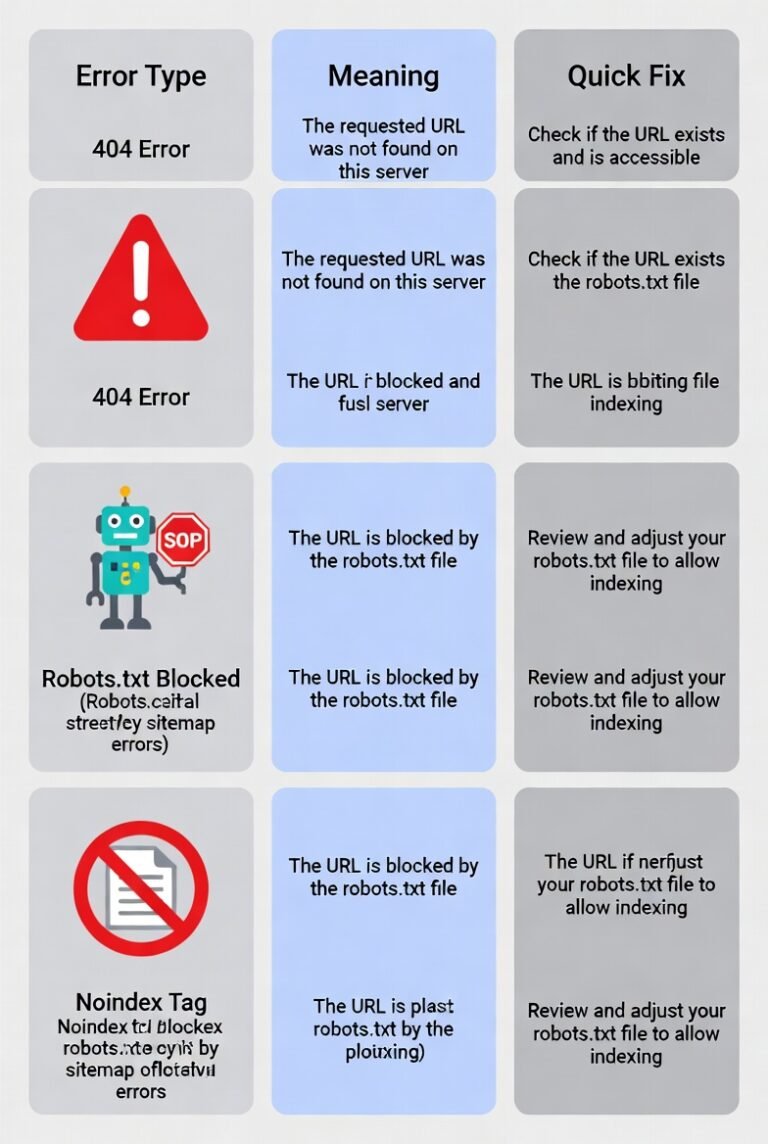
| Error Message | What It Means | Quick Fix |
|---|---|---|
| Couldn’t fetch | Google can’t reach your sitemap URL | Check if the sitemap URL is live and returns a 200 status |
| Sitemap contains urls which are blocked by robots.txt | Some URLs in the sitemap are disallowed | Remove them from robots.txt or from the sitemap |
| Submitted URL not found (404) | Sitemap has dead links | Remove or update those URLs |
| Submitted URL has crawl issue | Server error or timeout | Check server logs, fix hosting/response speed |
| Submitted URL marked ‘noindex’ | Page is excluded from indexing | Remove it from sitemap or take off the noindex tag |
| General HTTP error | Server returned an error code | Check hosting, redirects, or firewall rules |
Step-by-Step Fix
1. Open the Sitemap Report
Go to Google Search Console → Sitemaps (left sidebar). You’ll see the status of each submitted sitemap and any errors listed under it.
2. Check the Exact Error
Click on the sitemap that shows an issue. Google usually tells you the specific URL and the specific problem. Don’t guess, read the actual error text.
3. Test the Problem URLs
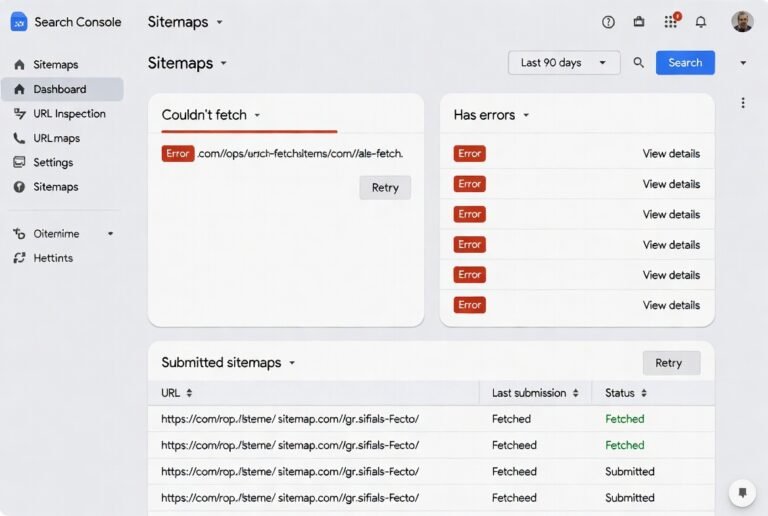
Use the URL Inspection tool inside Search Console for each flagged URL. This tells you if the page is indexed , blocked, redirected, or missing.
This also tells you why google deindex your page and how you recovered.
4. Clean the Sitemap File
Your sitemap should only include:
- Live pages (status 200)
- Canonical URLs (not duplicates)
- Indexable pages (no noindex tag)
- Pages not blocked in robots.txt
Most CMS platforms (WordPress with Yoast/RankMath, Shopify, etc.) generate sitemaps automatically, so if there’s an error, it’s usually because a page’s status changed after the sitemap was generated, like a page got deleted, redirected, or noindexed without updating the sitemap.
5. Resubmit the Sitemap
Once cleaned, remove the old sitemap URL from Search Console and resubmit it. Google will recrawl and update the report within a few days.
Real Example From My Work
On one real estate client site, Search Console kept flagging “Submitted URL not found (404)” for a batch of property listing pages. Turned out the client had deleted sold property listings, but the sitemap was still referencing them because it wasn’t set to auto-update. I switched the sitemap to dynamic generation (auto-refreshes when listings are added or removed), and the errors cleared within a week.
On another project, a WooCommerce store had “blocked by robots.txt” errors. Someone had accidentally disallowed the /product-tag/ folder in robots.txt while cleaning up thin content pages, but those same tag pages were still sitting in the sitemap. The fix was just removing that folder from the sitemap since we didn’t want it indexed anyway.
A Few Things That Cause Sitemap Errors Nobody Talks About
- Multiple sitemaps pointing to the same URLs . This confuses Google and can trigger duplicate/canonical warnings.
- Sitemap not updating after a CMS migration . Old URLs stay in the sitemap even after a site redesign.
- Mixed HTTP and HTTPS URLs in one sitemap. Aalways keep it consistent with your live protocol.
- Sitemap file too large . Google has a 50,000 URL / 50MB limit per sitemap file so, split large sites into multiple sitemaps with a sitemap index file.
How Long Does It Take Google to Fix the Errors?
Once you resubmit a cleaned sitemap, Google typically recrawls it within a few days to two weeks, depending on your site’s crawl budget and how often Googlebot visits your domain. You can speed this up slightly by requesting indexing on the URL Inspection tool for high-priority pages.
So I want to say.
Sitemap errors look alarming, but they’re almost always a mismatch between what your sitemap says exists and what actually exists live on your site. Keep your sitemap dynamic, clean, and in sync with your CMS, and you’ll rarely see these errors pop up again.