
Fix WordPress REST API Errors in Minutes
Use these quick steps to resolve common WordPress REST API errors and restore site functionality fast. Whether you see “The REST API encountered an error,” a rest_forbidden message, or “Your site could not complete a loopback request,” the fixes often involve checking permalinks, plugins, and server settings.
In most cases you can fix WordPress REST API errors in minutes by flushing rewrite rules, disabling a conflicting plugin, or adjusting your server/firewall configuration.
This article shows easy, practical fixes step by step. You’ll learn how to identify the error (via Site Health or logs), test a REST endpoint, and apply common solutions. Each section is clear and actionable – even if you’re an intelligent beginner with no deep technical background.
By the end, your REST API should be working smoothly again, whether you’re using the block editor (React-based) or a custom front end.
Check Site Health and Server Logs
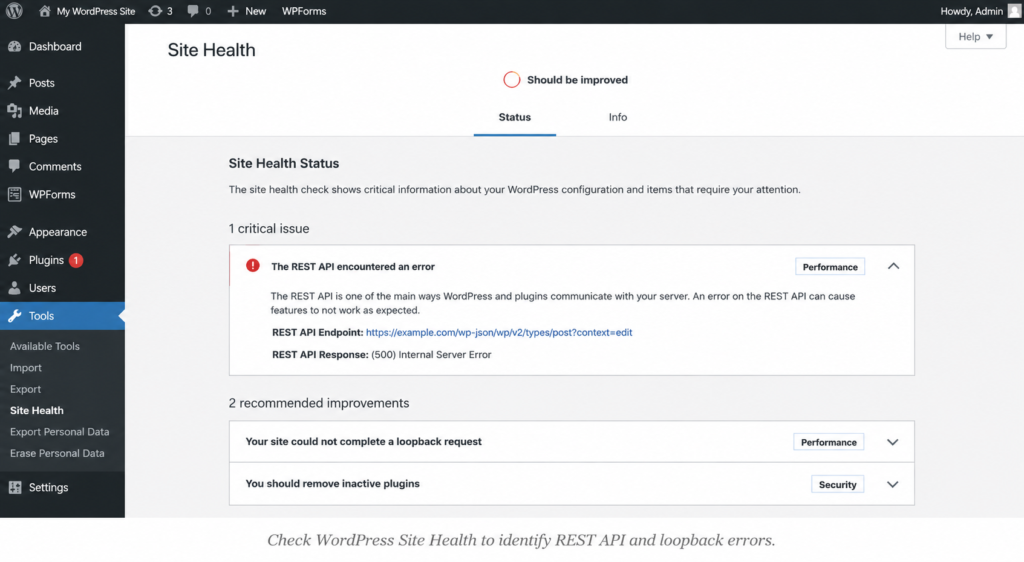
The WordPress Site Health tool reports REST API issues by name. For example, if the loopback test fails it shows: “Your site could not complete a loopback request,” and if a REST call fails it shows “The REST API encountered an error.”
These messages match the code: WordPress performs a test request to /wp-json/wp/v2/types/post?context=edit, and if it fails it logs an error with the endpoint and error code. Check Tools → Site Health in your dashboard for these notices. Also, review your server’s PHP error log or debug log, which often names the failing plugin or function.
- Check error details. Note the exact message and any code (e.g. cURL timeout, 403, 404, 405). For example, a cURL error 28 (timeout) often means the server couldn’t connect to itself. A “403 Forbidden” usually means a firewall or security rule blocked the API. A “405 Not Allowed” suggests the web server rejected the HTTP method.
Test a simple API call. Open https://yourdomain.com/wp-json/ in a browser or use a tool like curl.
For example:
curl -I https://yourdomain.com/wp-json/wp/v2/posts
This should return an HTTP 200 response with JSON content. If you get an error, note the response (it will match the Site Health message). This step tells you if the REST API endpoint is reachable at all.
Checking these clues helps pinpoint the cause. If Site Health says “encountered an error,” copy the REST API Endpoint and Response it shows. For example, an entry like:
REST API Endpoint: https://example.com/wp-json/wp/v2/types/post?context=edit
REST API Response: (403) Forbidden
means the API is blocked (in that case by Cloudflare proxy) and needs fixing. The key is to note the pattern: these errors are usually due to plugin conflicts, permalinks issues, or server restrictions.
Test the REST API Endpoint Directly
Manually testing the API endpoint can confirm if it’s working. Use your browser or a command-line tool to call a known REST route, such as the posts endpoint:
- In a browser, go to
https://yourdomain.com/wp-json/wp/v2/posts. You should see raw JSON listing your posts. If you get an error message or blank page, note it.
In a terminal, run:
curl -i https://yourdomain.com/wp-json/wp/v2/posts
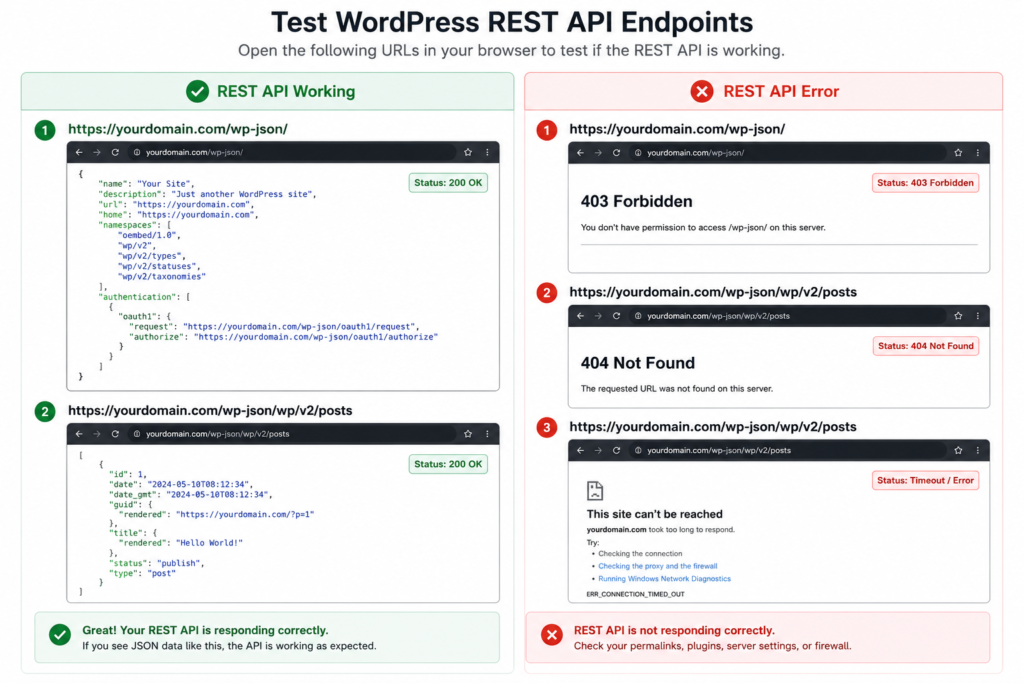
A 200 OK response with JSON data means the REST API is responding properly. Other response codes indicate the issue:
- 403 Forbidden or rest_forbidden means a permission or firewall issue (see below).
- 404 Not Found suggests rewrite rules are broken (see the Permalinks section).
- Timeouts or cURL errors often indicate server connectivity issues.
Also try a basic WP-JSON index check: https://yourdomain.com/wp-json/. This should at least show the API namespace listing (if REST is enabled at all).
Running these tests rules out some causes.
For example, a 404 on /wp-json/ usually means permalinks need flushing. A successful curl call here indicates the API itself isn’t completely disabled.
Flush Permalinks and Check Rewrite Rules
A surprising but very common fix is simply flushing your permalink rules. WordPress routes REST API calls through the same rewrite system as normal posts. If your rewrite rules are corrupt or out of date, the API will break.
To flush them:
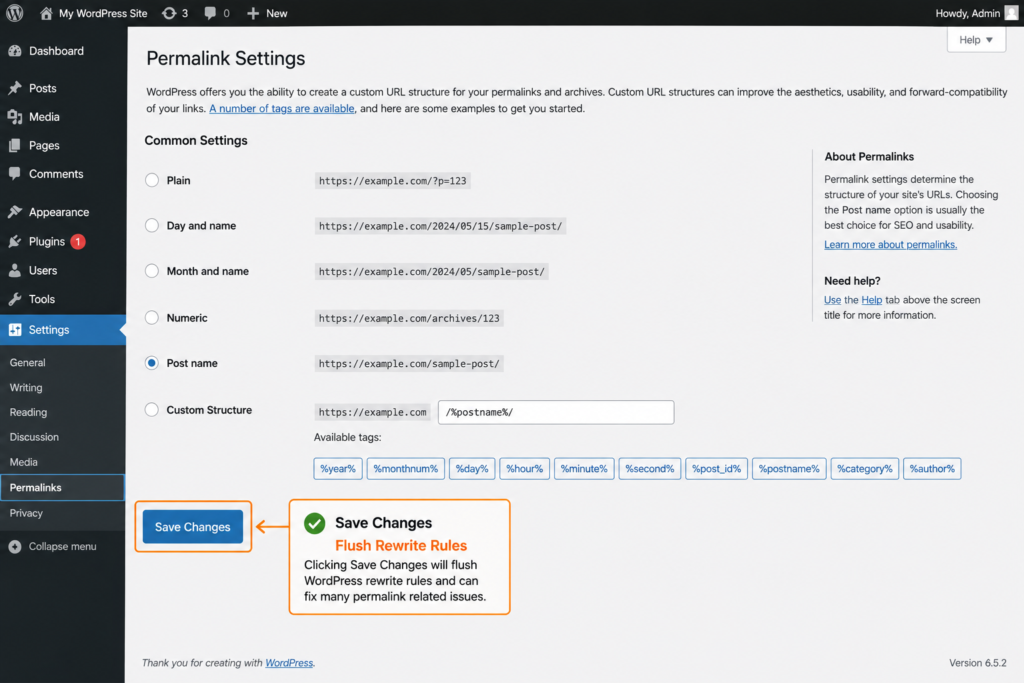
- Go to Settings → Permalinks in your dashboard.
- Without changing anything, click Save Changes. This forces WordPress to regenerate its
.htaccessor Nginx rewrite rules.
If you’re on Apache, ensure the standard WordPress .htaccess is in place. It should look like this (generated automatically):
# BEGIN WordPress
<IfModule mod_rewrite.c>
RewriteEngine On
RewriteBase /
RewriteRule ^index.php$ – [L]
RewriteCond %{REQUEST_FILENAME} !-f
RewriteCond %{REQUEST_FILENAME} !-d
RewriteRule . /index.php [L]
</IfModule>
# END WordPress
If you had a custom .htaccess, you can temporarily rename it and let WordPress create a default one. That often fixes hidden rewrite issues.
For Nginx servers, ensure your site config includes the typical try_files directive (e.g. try_files $uri $uri/ /index.php?$args;). If in doubt, your host’s support should confirm rewrite rules are correct.
Deactivate Plugins and Switch Themes to Identify Conflicts
Incompatible plugins or themes are the most frequent cause of REST API errors. Security plugins, caching, or any plugin that filters REST can inadvertently block /wp-json/.
To diagnose:
- Deactivate all plugins. Log into WordPress admin and deactivate every plugin. Then test the REST API again (re-run the curl or browser test above). If the API now works, one of the plugins was the culprit.
- Reactivate one by one. Activate each plugin individually, testing the REST API after each one. When the error returns, you’ve found the conflicting plugin. Often security or firewall plugins (Wordfence, iThemes Security, etc.) have settings that block the REST API. Look at their configuration and whitelist
/wp-json/or disable the blocking feature. - Switch to a default theme. If deactivating all plugins didn’t help, try switching your theme to a default WordPress theme (like Twenty Twenty-Four). If the error disappears, the issue is in your theme’s code. Otherwise, it’s likely a deeper server issue.
According to WPSTAGING, disabling all plugins resolves REST API errors in the majority of cases. So this step is crucial. Always reactivate and retest carefully. You might also do this on a staging copy of your site to avoid downtime.
Server, Network and Firewall Issues
If plugin/theme fixes didn’t solve it, the cause may be at the server or network level:
- DNS/Hosts resolution. In some setups (especially local development or Docker), WordPress may not resolve its own domain correctly. Check your server’s
/etc/hosts(or Windows host file) to ensure the site’s domain points to the correct local IP. For example, adding127.0.0.1 yoursite.localcan solve loopback errors in Docker or local environments. - Server connection timeouts (cURL errors). A cURL error 28 or similar timeout often means the site can’t connect to itself fast enough. You can try increasing the HTTP timeout by adding to
wp-config.php:
phpdefine('WP_HTTP_TIMEOUT', 60);This sets the timeout to 60 seconds. Also ensure your PHP memory and max execution time are sufficient (low memory can cause weird REST failures).
- SSL and HTTPS settings. If you recently migrated to HTTPS, verify both the WordPress Site Address (URL) and Home Address (URL) in Settings are
https://...and match your actual SSL certificate. Mismatched SSL setup can make loopback or API calls fail. - Cloudflare or CDN/Firewall. If you use Cloudflare (or another proxy/security service), it might be blocking loopback requests. For instance, Cloudflare’s Under Attack Mode or strict WAF rules will see a server calling itself as a “bot” and block it.
The fix is to temporarily disable such modes or add an exception. Cloudflare now offers an “Optimize for WordPress” setting in its Super Bot Fight Mode that authorizes loopbacks. (Alternatively, pause the proxy or whitelist your server’s IP).
- Localhost vs. real domain. Note: WordPress doesn’t use
localhostfor loopbacks, since different servers handle localhost differently. It uses the actual domain name, so ensure DNS resolves correctly on the server itself.
In summary, any factor preventing the server from reaching its own REST endpoint will break the API. If the Site Health loopback error showed a specific code (403, 405, 524, etc.), that’s a clue.
For example, a 403 loopback often means a firewall (Cloudflare, server firewall) is rejecting the request. A 405 might mean the web server is not allowing POST requests to wp-cron.php (which the loopback test uses). In those cases, check your host’s configuration or ask their support to ensure loopback (HTTP request to your own site) is permitted.
Fixing Permission Errors and “rest_forbidden”
If you see “rest_forbidden” or “Sorry, you are not allowed to do that” in the REST API response, it’s a permissions issue in your code or server. Common causes and fixes:
- Logged-in vs. guest requests. By default, most REST routes require a logged-in user or proper authentication. If you’re testing an admin-only route as a visitor, you’ll get
rest_forbidden. Make sure you’re logged in (or using a valid nonce/API key) when calling protected routes. - Custom endpoints or code. If you registered a custom REST route, check its
permission_callback. Often users return an error by mistake.For example, StackOverflow shows a user’s custom endpoint returned rest_forbidden because their
permission_callbacklogic was wrong. The fix was to change the callback to simplyreturn is_user_logged_in();instead of manually checking and returning WP_Error. In short: ensure your permission callback returns true for allowed users, not an error by default. - Authentication headers. If you’re using Basic Auth or Application Passwords for API access, make sure the headers are sent correctly. A common mistake is forgetting to add the
X-WP-Nonceheader for AJAX calls in the block editor. WordPress provides a nonce viawp_localize_scriptfor the REST root – ensure your front-end code sets it. - Security plugins and .htaccess. Some security rules (in plugins or
.htaccess) can block REST endpoints. For instance, Redirection plugin issues arest_forbiddenwarning when it detects unexpected redirects. If you have custom redirects or firewall rules in.htaccess, try commenting them out temporarily to see if the error goes away.
In short, rest_forbidden means “you don’t have permission.” Double-check any code or plugin that hooks into the REST API. If needed, temporarily disable code that uses remove_action('rest_api_init') or add_filter('rest_authentication_errors').
And remember: completely disabling the REST API (e.g. via a filter) will break Gutenberg and any app that uses it.
Using cURL or WP-CLI for Deep Diagnosis
If the above steps didn’t reveal the issue, use command-line tools for more insight:
- cURL options. You can test with cURL adding flags like
-v(verbose) or--insecure(skip SSL verification) to see connection details. For example:bash
curl -v --insecure https://yourdomain.com/wp-json/wp/v2/postsThe verbose output will show headers and SSL issues. If SSL is misconfigured (say, using a self-signed cert in local dev), this might reveal it.
- WP-CLI REST commands. If you have SSH access,
wp restcommands can list available routes or call endpoints. For example:nginx
wp rest route list --url=https://yourdomain.comor
bash
wp eval 'echo rest_url("wp/v2/posts");'These can confirm that WordPress can generate the correct API URLs. (Use WP-CLI on the server itself to avoid local network issues.)
These tools bypass the browser and show exactly what’s happening under the hood. Often you’ll see HTTP status codes or error messages more clearly.
For example, a 524 or similar code from curl -i can hint that Cloudflare timed out while proxying the request.
Verify the REST API Is Enabled
Finally, make sure nothing is intentionally disabling the API. Check for any code (in themes or plugins) that uses hooks like rest_authentication_errors or rest_pre_dispatch. These filters can completely shut off the API.
For example, a snippet like this in functions.php would block everything:
add_filter(‘rest_authentication_errors’, function($error) {
return new WP_Error(‘rest_disabled’, ‘REST API is disabled’, array(‘status’ => 401));
});
If you find something like that, comment it out. Likewise, some plugins (like “Disable WP REST API”) might be active – deactivate them for testing.
The block editor (Gutenberg) requires the REST API, so any code disabling it will cause the editor to fail. Ensure your site is not in “disable REST API” mode, unless explicitly intended.
Final Takeway
By following these steps, you can fix WordPress REST API errors in minutes and restore normal operation. Start by reading the exact Site Health message and testing the API endpoint directly. Then flush your permalinks, disable plugins/themes to isolate conflicts, and ensure your server isn’t blocking the API (check SSL, firewall, and hosts settings).
Most REST API issues come down to either a rewrite/perm settings problem or a blocked request (by a plugin or firewall). After applying these solutions, re-test the endpoint to confirm success.
If problems persist, remember to enable WP_DEBUG and check logs for clues, or contact your hosting support with the error details. Keeping WordPress, plugins, and themes updated, and testing changes on a staging copy, will help avoid REST API issues down the line.
Take action: Once the REST API is fixed, double-check your site’s Site Health (Tools → Site Health) – the “encountered an error” and loopback warnings should be gone. Congratulations, your WordPress REST API is back in business!
FAQs
What does “The REST API encountered an error” mean?
It means WordPress failed to complete an internal test call to its API endpoint (/wp-json/...). Usually, a conflicting plugin, broken permalinks, or a server rule is blocking or breaking the request.
How do I fix a “rest_forbidden” error?
This means your request was denied due to missing permissions. Ensure you are logged in as an administrator, check your code’s permission_callback, or verify that security plugins/firewalls aren’t blocking the endpoint.
What is a loopback request and why did it fail?
A loopback is when WordPress “calls itself” for background tasks like WP-Cron. It usually fails when a firewall (like Cloudflare), server restriction, or DNS issue blocks the site from connecting to its own URL.
How can I test if the WordPress REST API is working?
Simply visit [https://yourdomain.com/wp-json/](https://yourdomain.com/wp-json/) in your browser. If you see raw JSON data listing your site’s namespaces, your REST API is up and running.
Why does WordPress say “REST API is disabled”?
This happens when a plugin or custom code in your functions.php file explicitly blocks the API using filters like rest_authentication_errors. Removing or commenting out that snippet re-enables it.
It means WordPress failed to complete an internal test call to its API endpoint (/wp-json/...). Usually, a conflicting plugin, broken permalinks, or a server rule is blocking or breaking the request.
This means your request was denied due to missing permissions. Ensure you are logged in as an administrator, check your code’s permission_callback, or verify that security plugins/firewalls aren’t blocking the endpoint.
A loopback is when WordPress “calls itself” for background tasks like WP-Cron. It usually fails when a firewall (like Cloudflare), server restriction, or DNS issue blocks the site from connecting to its own URL.
Simply visit [https://yourdomain.com/wp-json/](https://yourdomain.com/wp-json/) in your browser. If you see raw JSON data listing your site’s namespaces, your REST API is up and running.
This happens when a plugin or custom code in your functions.php file explicitly blocks the API using filters like rest_authentication_errors. Removing or commenting out that snippet re-enables it.