
Writing a blog post in WordPress can take hours.
You have to come up with an idea, build an outline, write the introduction, clean up awkward sentences, create headings, fix grammar, and then go back through the whole thing before publishing.
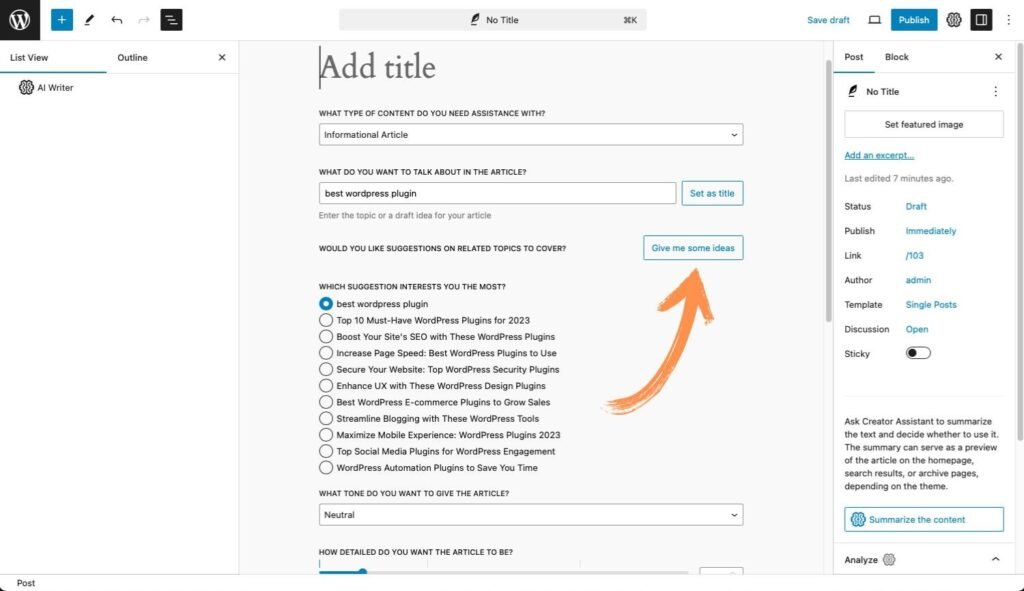
A WordPress AI assistant can take some of that work off your plate.
You can use it to create a first draft, rewrite paragraphs, shorten long sections, generate titles, summarize content, translate text, and clean up existing writing.
The key is knowing where AI actually helps and where you still need to make the final call.
What is a WordPress AI assistant?
A WordPress AI assistant is an AI writing or editing tool that works inside your WordPress workflow.
Instead of switching between WordPress and a separate AI website, you can give instructions while you’re working on your post or page.
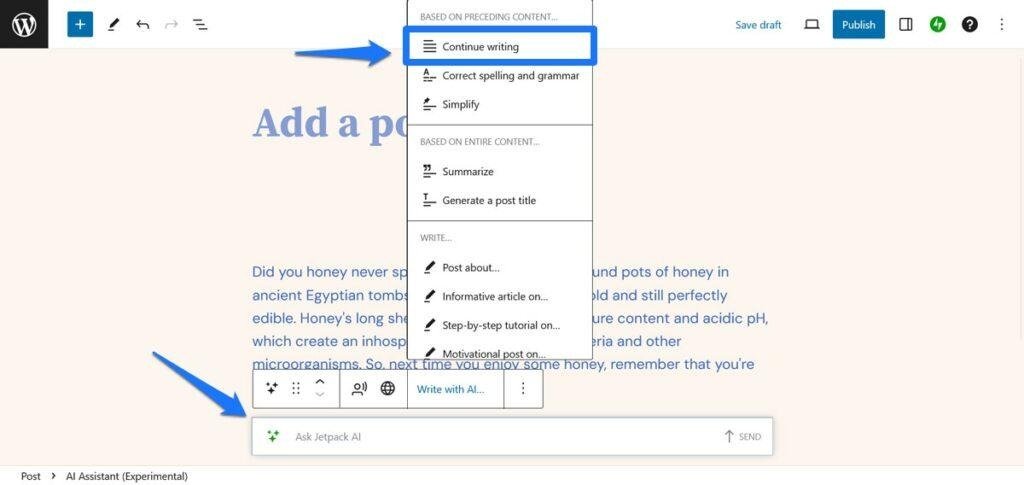
One example is the Jetpack AI Assistant, which works inside the WordPress block editor. It can generate and transform content, change the tone, translate text, create titles and summaries, and help with existing blocks.
WordPress.com also has its own WordPress AI Assistant that can work inside the WordPress experience. Current WordPress.com documentation describes AI features for writing, editing, design, and site management.
The exact features depend on which WordPress setup you’re using.
For a self-hosted WordPress site, Jetpack AI is one option. On WordPress.com, AI features are built into the platform for eligible plans.
What can a WordPress AI assistant do?
You can use an AI assistant for much more than writing an entire article.
Here are some practical jobs it can handle.
1. Generate a first draft
You can give the assistant a topic and some basic instructions.
For example:
Write a 700-word beginner-friendly article about fixing slow WordPress websites.

Use short paragraphs.
Explain technical terms in simple language.
Include 5 practical steps.
Use the phrase "speed up WordPress" naturally.
The result gives you something to work with.
You can then replace weak sections, add your own examples, check the facts, and adjust the article to match your site’s voice.
That’s much faster than staring at a blank editor.
2. Create an outline
This is one of the better uses for AI.
Before asking an assistant to write 2,000 words, ask it to organize the topic first.
Try:
Create an outline for a beginner-friendly article about WordPress SEO.

The article should cover:
- basic WordPress SEO settings
- titles and meta descriptions
- internal links
- images
- technical SEO
- common mistakes

Keep the outline focused on search intent.
You can then edit the outline before writing anything.
That small step can prevent a lot of editing later.
3. Rewrite awkward paragraphs
You’ve probably written a paragraph that technically makes sense but sounds clumsy.
Select it and ask the AI assistant to rewrite it.
For example:
Rewrite this paragraph in plain English.
Keep the meaning.
Use shorter sentences.
Make it sound natural and conversational.
Jetpack’s AI tools can modify existing Paragraph, Heading, and List blocks through the AI Assistant controls in the editor.
This is especially useful when you’re editing an older article.
4. Fix grammar and spelling
You can also use AI as an editing pass.
Ask it to:
- correct spelling
- fix grammar
- remove repetition
- simplify long sentences
- improve clarity
Jetpack AI includes spelling and grammar correction as part of its writing tools.
Still read the final version yourself.
AI can change the meaning of a sentence while trying to make it sound better.
How to use a WordPress AI assistant step by step
The exact interface depends on your WordPress setup and the AI tool you’re using.
For the Jetpack AI Assistant, you’ll work from the WordPress block editor.
Step 1: Open your WordPress editor
Create a new post or open an existing post.
You’ll need the WordPress Block Editor for the Jetpack AI Assistant block. Jetpack also needs to be connected to your site.
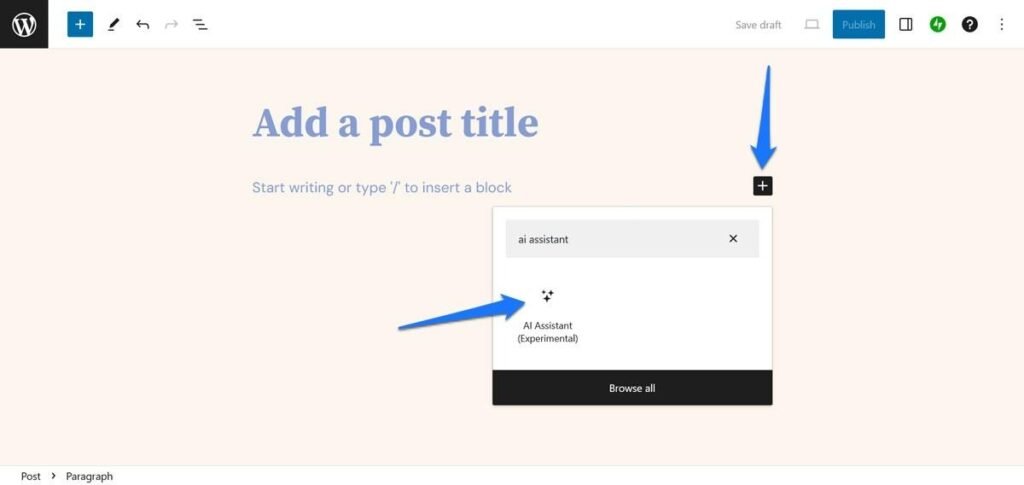
Step 2: Add the AI Assistant
Click the + button in the editor and search for AI Assistant.
You can also type /ai on a new line to quickly add the block in supported WordPress environments.
Step 3: Give it a specific instruction
This part matters.
A vague prompt such as:
Write about SEO.
gives the assistant very little direction.
Try something more specific:
Write an introduction for a beginner-friendly article about WordPress SEO.

Audience: small business owners
Length: 120 words
Tone: conversational and practical
Main keyword: WordPress SEO
Avoid generic statements.
Start with the problem of getting traffic but few clicks.
The more useful context you provide, the less editing you’ll usually have to do.
Step 4: Review the output
Don’t immediately publish what the assistant generates.
Read every paragraph.
Check:
- Facts
- Statistics
- Names
- Product features
- Dates
- Links
- SEO claims
- Examples
AI can produce convincing sentences that contain incorrect information.
For a business website, that’s a problem.
Step 5: Edit the result yourself
This is where your experience matters.
Add examples from your own work.
Remove generic sentences.
Change wording that doesn’t sound like you.
Add screenshots when they make the instructions easier to follow.
Your finished article should sound like your website, not like a generic AI writing tool.
Use AI for the boring parts of writing
You can save more time by using AI for small tasks instead of asking it to write everything.
For example, you can ask:
Give me 10 possible headings for this section.
Or:
Shorten this paragraph to 60 words without removing the main point.
Or:
Turn these 5 points into a numbered list.
Or:
Create a concise summary of this article for the WordPress excerpt field.
These tasks take seconds.
Doing them manually can break your writing flow.
Use AI to improve old WordPress posts
You don’t have to use AI only for new content.
Old posts can be a good place to use it.
Open an existing article and look for sections that are:
- too long
- repetitive
- difficult to understand
- outdated
- poorly structured
- missing useful examples
Then work through those sections individually.
For example:
Rewrite this section for beginners.

Keep all factual information.
Remove repetition.
Use shorter paragraphs.
Keep the existing keyword naturally.
Don't add claims that aren't supported by the original text.
Jetpack’s AI Extension can work with existing Paragraph, Heading, and List blocks, giving you options to simplify, summarize, expand, translate, correct, or change the tone.
That makes AI useful as an editing tool, not only a content generator.
Use AI for SEO writing tasks
A WordPress AI assistant can also help with several parts of your SEO workflow.
For example, you can ask it to generate:
- Blog title ideas
- Meta description drafts
- Article outlines
- FAQ questions
- Subheadings
- Short summaries
- Internal link suggestions
- Image alt text drafts
Be careful with SEO recommendations, though.
AI doesn’t automatically know which keywords your site should target or which pages deserve internal links.
Use your keyword research and existing site structure as the source of truth.
For example, instead of:
Suggest keywords for this article.
Can you use ChatGPT for keyword research?
give it actual information:
Primary keyword: WordPress AI assistant

Related terms:
WordPress AI writing assistant
AI assistant for WordPress
WordPress AI content generator

Create 8 natural subheadings for this article.
Don't force every keyword into a heading.
The output will have much more useful direction.
How to write better prompts
You don’t need complicated prompt formulas.
Give the AI four things:
What you want + who it’s for + the constraints + the source material.
For example:
Rewrite this WordPress tutorial for beginners.

Audience:
Small business owners who use WordPress but aren't developers.

Requirements:
- Keep the instructions accurate
- Use short paragraphs
- Explain technical terms
- Keep the existing headings
- Don't add unsupported claims

Text:
[Paste your paragraph here]
That’s enough for many everyday tasks.
You can also tell the assistant what it should preserve.
For example:
Keep my examples and main argument.
Improve sentence clarity only.
Don't add new information.
That gives you much more control over the result.
Don’t ask AI to write the whole article blindly
You can generate an entire article with AI, but that doesn’t mean you should publish it as-is.
A better workflow is to break the job into stages.
Stage 1: Research
Find the actual information you need.
Check official documentation, product pages, Google guidance, studies, and other reliable sources where appropriate.
Stage 2: Outline
Build the article structure around the search intent.
Stage 3: Draft
Use AI for sections where it can save time.
Stage 4: Edit
Rewrite the weak parts yourself.
Stage 5: Fact-check
Verify claims, especially anything involving prices, features, statistics, dates, or SEO recommendations.
Stage 6: Optimize
Add your title, meta description, internal links, images, alt text, and other on-page elements.
Stage 7: Publish
Read the article one final time as a visitor.
Does it answer the question quickly?
Can a beginner follow the instructions?
Are there unnecessary sections?
If the answer is yes, publish.
WordPress AI assistant vs separate AI tools
There are two common ways to use AI for WordPress writing.
| Method | How it works |
|---|---|
| AI inside WordPress | Write and edit content directly in the WordPress editor |
| Separate AI tool | Generate or edit content elsewhere, then paste it into WordPress |
An assistant inside WordPress reduces the amount of copying and pasting.
A separate AI tool can still be useful when you need longer research sessions, detailed brainstorming, or a specific workflow.
You can also combine the two.
For example, you might research a topic externally, create an outline, then use the WordPress AI assistant to rewrite individual sections while you’re building the final post.
How much time can you actually save?
It depends on your workflow.
If you normally spend 3 hours writing a post, AI probably won’t turn that into 10 minutes of finished publishing work.
Research, fact-checking, editing, screenshots, internal linking, and SEO still take time.
The bigger time savings usually come from small tasks.
A title that takes 10 minutes can be generated in seconds.
A paragraph that needs 3 rewrites can be cleaned up with one prompt.
A long section can be summarized quickly.
Ten FAQ ideas can be generated almost instantly.
Those minutes add up across 20 or 30 posts.
Mistakes to avoid when using WordPress AI
Publishing AI output without checking it
AI can make factual mistakes.
Always verify important claims.
Using generic prompts
“Write a blog post about WordPress” doesn’t give the assistant enough context.
Tell it who the reader is, what the article needs to accomplish, and what style you want.
Letting AI replace your expertise
Your experience is often what makes an article useful.
Add real examples, screenshots, processes, mistakes you’ve seen, and practical advice.
Repeating the same AI-generated structure
If every article has the same introduction, 7 headings, a 3-item list, and a generic conclusion, your site will start feeling repetitive.
Change the structure based on the topic.
Ignoring search intent
AI can write a perfectly grammatical article that answers the wrong question.
Look at what the searcher actually wants before drafting.
Treating AI as a fact-checker
AI can help you organize information.
It shouldn’t be the final authority for current WordPress features, plugin pricing, Google changes, or technical documentation.
A simple WordPress AI writing workflow
Here’s a workflow you can use for your next post.
1. Pick the topic.
Know the search query and the reader’s problem.
2. Create the outline.
Ask AI for ideas, then remove anything that doesn’t help the reader.
3. Write the important sections yourself.
Especially examples, opinions, first-hand experience, and advice based on your actual work.
4. Use AI for repetitive editing.
Fix grammar, shorten paragraphs, rewrite unclear sentences, and create summaries.
5. Add SEO elements.
Write the title, meta description, headings, internal links, image alt text, and other relevant elements.
6. Fact-check everything that matters.
Use reliable sources.
7. Read the final post without thinking about AI.
Pretend you’re the person who searched for the topic.
If the article answers their question clearly, you’re ready to publish.
Is a WordPress AI assistant worth using?
For bloggers, small business owners, and WordPress users who write regularly, an AI assistant can remove a lot of repetitive work.
The best use isn’t handing over the entire writing process.
Use it when you need a first draft, a cleaner paragraph, a shorter explanation, a title idea, a translation, or help editing existing content.
Jetpack currently provides 20 free AI requests, with paid plans available for higher usage. Its current AI offering also includes text and image generation, titles, summaries, grammar help, and other writing features.
WordPress.com has also expanded its AI features beyond writing. Its AI tools can assist with site editing and other WordPress tasks, depending on the plan and setup.
The practical approach is simple: let AI handle repetitive writing work, then use your own judgment for the parts that require experience.
FAQs
What is the best AI assistant for WordPress?
There isn’t one assistant that fits every WordPress site. Jetpack AI is one option for WordPress users who want AI tools inside the block editor, while WordPress.com provides its own AI features for eligible plans.
Can I use AI to write WordPress blog posts?
Yes. AI assistants can create drafts, outlines, summaries, titles, and other content. You should still review and edit the output before publishing.
Does WordPress have a built-in AI assistant?
WordPress.com has an AI Assistant that works within the WordPress.com experience. The exact features and availability depend on your plan and setup.
Can Jetpack AI rewrite existing WordPress content?
Yes. Jetpack AI can work with existing Paragraph, Heading, and List blocks and can rewrite, summarize, expand, translate, or change their tone.
Can AI write SEO-friendly content?
AI can help with outlines, headings, summaries, titles, and other SEO writing tasks. It can’t replace keyword research, search-intent analysis, fact-checking, or editorial judgment.
Is WordPress AI free?
Some WordPress AI features have free usage limits. Jetpack currently provides 20 free AI requests, with paid options for additional usage. WordPress.com AI availability varies by plan.
Should I publish AI-generated content without editing it?
You should review AI-generated content before publishing. Check facts, examples, wording, sources, and whether the article actually satisfies the searcher’s question.
Can AI help update old WordPress articles?
Yes. You can use AI to simplify paragraphs, fix grammar, shorten sections, create summaries, and rewrite existing blocks. It can be particularly useful during content updates.