
404 errors mean a page cannot be found. The quickest way to handle how to easily find and fix 404 errors in WordPress is to locate the broken URLs, restore the correct permalinks or redirect them, and check your server error logs so visitors stop hitting dead ends.
A sudden spike in 404s frustrates users, wastes crawl budget, and can quietly hurt rankings. Whether the problem shows up on the front end, in the WordPress admin, or after a plugin update, the fixes below work for most sites. You will learn how to spot the errors, correct them step by step, prevent them from returning, and keep an eye on overall site health with practical tools.
Why 404 Errors Appear and Why They Matter
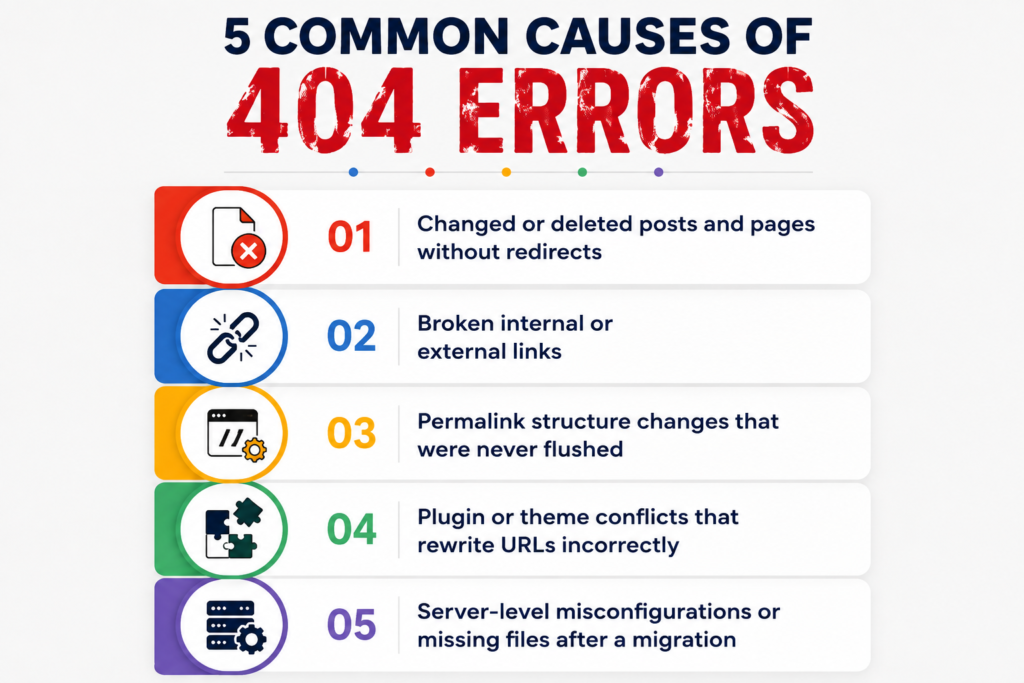
A 404 “Not Found” response simply tells the browser the requested URL does not exist on the server. Common causes on WordPress include:
- Changed or deleted posts and pages without redirects
- Broken internal or external links
- Permalink structure changes that were never flushed
- Plugin or theme conflicts that rewrite URLs incorrectly
- Server-level misconfigurations or missing files after a migration
Search engines treat large numbers of 404s as a sign of poor site maintenance. Visitors who land on them leave quickly. Both outcomes reduce trust and traffic over time. Regular monitoring with affordable seo tools or a free seo tool helps catch problems early so you can keep an seo friendly website design intact.
How to Easily Find and Fix 404 Errors in WordPress Using Built-in and Free Methods
Start with the simplest checks before installing anything.
1. Flush Permalinks
Go to Settings → Permalinks and click Save Changes without altering anything. This rebuilds the rewrite rules and often clears random 404s that appear after theme or plugin updates.
2. Check the WordPress Admin for Broken Links
If the dashboard itself returns a 404, the problem is usually with the .htaccess file or a security plugin that blocks admin paths. Rename the .htaccess file via FTP or your host’s file manager, then visit Settings → Permalinks again to regenerate it.
This answers the common question “What can I do to fix a 404 error in WordPress admin?” for most users.
3. Review Server Error Logs
Most hosts provide error logs in cPanel, Plesk, or a custom dashboard under Logs or Metrics. Look for entries that show the exact missing URLs and the referring pages.
Those referring pages are the places you need to edit. Knowing where to find error logs in WordPress (or on the server) is one of the fastest ways to locate the real source of 404s.
4. Use a Free or Low-Cost Scanner
Install a lightweight plugin such as Redirection or Broken Link Checker. Run a scan and export the list of broken URLs. For a broader view, free online crawlers or the best free seo tools 2022 lists still include reliable options that work in 2026.
Many best seo tools for small businesses and seo tools for blogger packages also include 404 tracking as part of their crawl reports.
Step-by-Step Fixes for Common 404 Situations
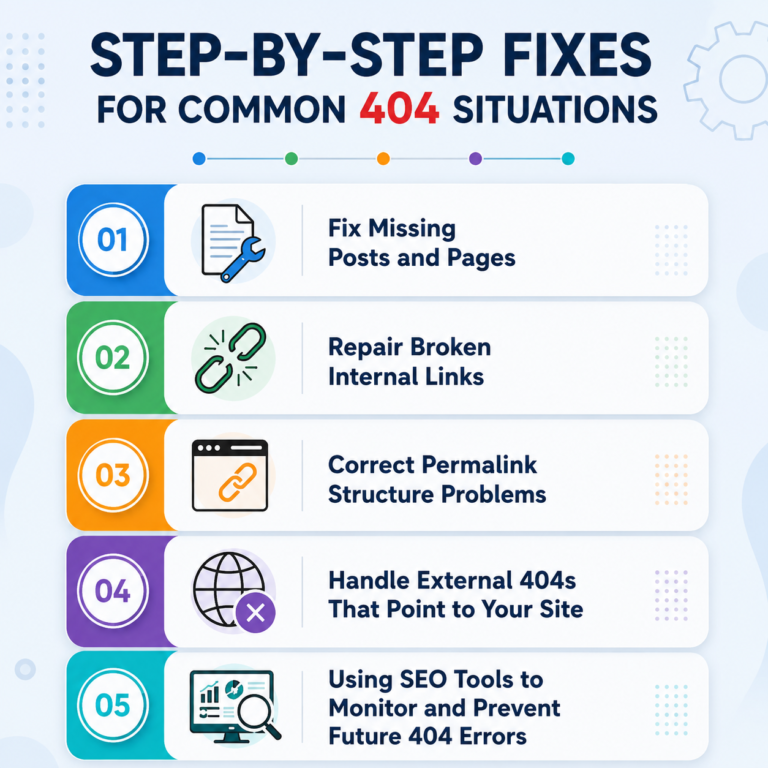
Fix Missing Posts and Pages
If a post was deleted by mistake, restore it from the Trash. If it was permanently removed, create a 301 redirect from the old URL to a relevant existing page. The Redirection plugin makes this painless: add the source URL, choose the target, and save.
Repair Broken Internal Links
Edit the posts or pages that contain the bad links. Update the URLs manually or use a search-and-replace plugin carefully. After major content clean-ups, re-crawl the site with one of the best seo optimization tools or a simple free crawler to confirm the links now resolve.
Correct Permalink Structure Problems
If you recently switched from “Plain” to “Post name,” some older links may still point to the old format. A bulk redirect or a temporary 301 rule covers the transition until Google reindexes the new structure.
Handle External 404s That Point to Your Site
When other websites link to a page you removed, set up a permanent redirect. This preserves any remaining link equity and improves the experience for visitors arriving from those sites.
Using SEO Tools to Monitor and Prevent Future 404 Errors
Once the immediate problems are fixed, set up ongoing monitoring. Many best seo tools for creators 2026 and small business search engine optimization tools include crawl and index reports that flag new 404s automatically. Look for features such as:
- Automated site crawls
- Search ranking reports and an seo ranking dashboard
- Seo analytics reporting that shows which broken pages still receive impressions
- Alerts when title tags or key pages start returning errors
Affordable seo tools and cheap seo tool options exist that cover the basics without enterprise pricing. Freelancer search engine optimization tools and best seo software for small businesses often bundle 404 detection with title tag analysis and basic technical audits.
Best seo automation tools can schedule regular scans so you do not have to remember to check manually. Even simple seo tools to increase traffic usually surface 404 data as part of their health checks.
An seo friendly website and solid seo friendly web design start with clean URLs and proper redirects.
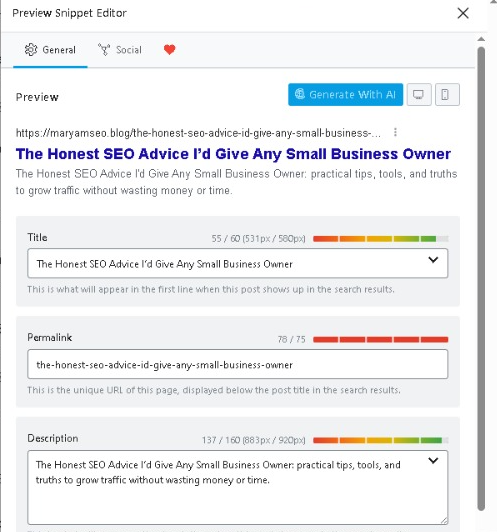
Understanding what is an seo title (the clickable headline in search results) and keeping your seo page title accurate helps pages rank and stay findable. Regular seo tasks such as checking for broken links belong on every site owner’s checklist. Basic seo terminology and common seo abbreviations (301, 404, crawl budget) make conversations with developers or freelancers clearer.
Note that do nofollow links help seo only in limited ways—they pass no ranking value—but they still affect user experience if they point to 404s. Clean internal linking remains more important.
Extra Tips for Long-Term Site Health
- Keep a simple content inventory so you know which URLs should exist.
- After any major redesign or migration, run a full crawl.
- Test critical paths (homepage, main service pages, checkout if you sell) after every plugin update.
- Document your redirect rules so future site managers understand the history.
A professional website is essential for most businesses. The importance of website for business and why businesses need a professional website become obvious the moment customers hit repeated 404s and leave for a competitor.
Conclusion
Learning how to easily find and fix 404 errors in WordPress protects both user experience and search visibility. Start with permalinks and error logs, use free or low-cost scanners to locate the broken URLs, apply 301 redirects where content has moved, and set up light ongoing monitoring. Clean URLs, accurate title tags, and an seo friendly website design make the job easier over time.
If your site still shows stubborn 404s after these steps, review recent changes with a developer or consult a technical SEO specialist. Fixing the errors today keeps visitors and search engines happy tomorrow.
How to fix 404 errors on a WordPress site?
Flush permalinks first, then scan for broken links with a plugin, restore or redirect the missing pages, and check the server error logs for the exact URLs that are failing.
How to fix 404 not found on website?
Identify the broken URL, decide whether the content should return or be redirected, set a 301 redirect if needed, and update any internal links that still point to the old address.
Where to find error logs in WordPress?
WordPress itself does not store detailed 404 logs by default. Check your hosting control panel under Error Logs, or enable WP_DEBUG and review the debug.log file in the wp-content folder for related issues.
Can plugins cause 404 errors?
Yes. Security, caching, and redirection plugins sometimes rewrite rules incorrectly. Deactivate recently added plugins one by one to isolate the cause, then reconfigure or replace the conflicting one.
Do I need paid tools to manage 404s?
No. Free plugins and the basic tools included with most hosts are enough for smaller sites. Larger sites benefit from the reporting features found in many best seo monitoring tools and affordable seo tool packages.