
WordPress SEO automation can eat up a surprising amount of time.
You publish a post, write a title, add a meta description, check internal links, compress images, update old content, watch for broken links, and then do it all again for the next article.
Do that across 50 or 100 posts and you’ve created a second job.
SEO automation can take a lot of that repetitive work off your plate. The goal is to let WordPress handle routine tasks while you keep control over the decisions that actually need human judgment.
Here are 10 practical ways to automate WordPress SEO without turning your site into a pile of auto-generated junk.
1. Automate SEO titles and meta descriptions
Every page needs a useful title and meta description.
Writing them manually is fine when you have 10 pages. It gets tedious when your site has hundreds.
SEO plugins such as AIOSEO, Yoast SEO, and Rank Math can help you set templates for titles and descriptions.
For example, you could create a title template like:
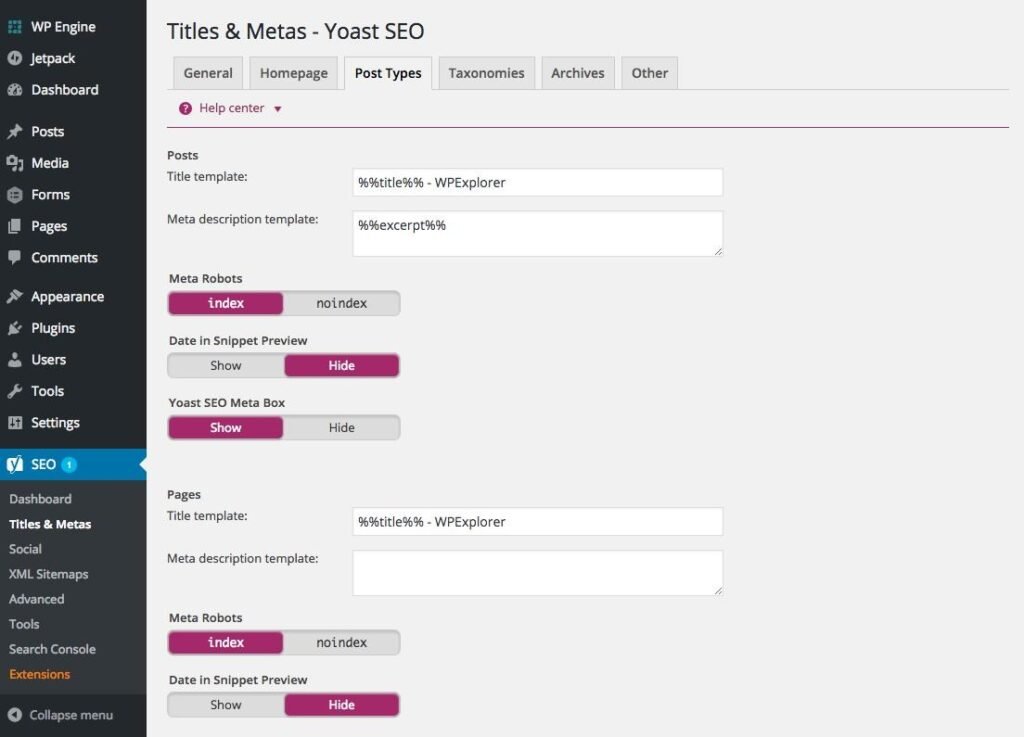
%post_title% | %site_title%
WordPress can then generate the basic SEO title automatically whenever you publish a new post.
You can still edit important pages manually.
That’s the sweet spot: automation handles the repetitive structure, while you fix the pages that deserve extra attention.
2. Automatically generate XML sitemaps
Your sitemap tells search engines which URLs exist on your site.
WordPress SEO plugins can generate and update XML sitemaps automatically whenever you publish, edit, or remove content.
You don’t need to create a new sitemap file every time you publish an article.
Once the sitemap is configured correctly, your workflow becomes much simpler:
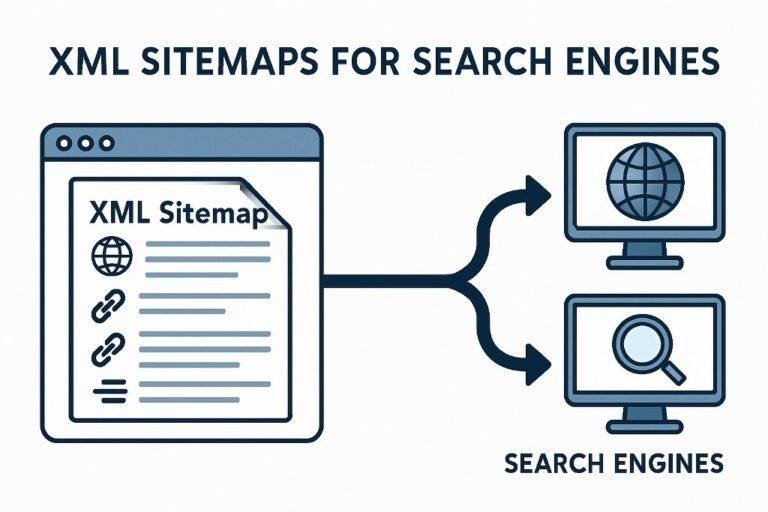
Publish → sitemap updates → search engines can discover the new URL.
Check your sitemap after setting it up, though. Make sure it contains the URLs you actually want indexed.
You generally don’t want thin tag archives, private pages, or unwanted URLs filling your sitemap.
3. Automate image SEO
Images create several small SEO tasks.
You need descriptive filenames, alt text, suitable dimensions, and reasonable file sizes.
Some WordPress plugins can automatically compress images when you upload them. Others can help with image optimization and metadata.
You can also create a simple publishing rule for yourself:
image-name.jpg
instead of:
IMG_847291.jpg
And write alt text based on what the image actually shows.
Don’t stuff keywords into every alt attribute. If an image shows a laptop displaying Google Search Console, describe that image.
That’s better for accessibility and gives search engines useful context.
4. Find broken links automatically
Broken links are easy to create.
You change a URL. Delete an old post. Move a page. Import content from another system.
A link that worked 6 months ago can suddenly lead to a 404 page.
You can use tools such as Google Search Console and SEO crawlers to monitor broken URLs. WordPress plugins can also scan your site for broken links, although running heavy scans constantly can put unnecessary load on some hosting environments.
A better setup is to schedule periodic checks.
For example:
Weekly: check important pages and recent content.
Monthly: run a broader site crawl.
Then fix the problems you actually find.
5. Automate redirects when URLs change
Changing a URL without creating a redirect can leave visitors and search engines at the old address.
A redirect plugin can make URL management much easier.
For example:
/old-seo-guide/
/new-seo-guide/
You can redirect the old URL to the new one instead of leaving visitors at a dead end.
Plugins such as Redirection can help manage these rules inside WordPress.
Be careful with automatic redirects, though. A bad redirect rule can send large numbers of unrelated URLs to the wrong destination.
Automation should reduce mistakes, not multiply them.
6. Automate internal link suggestions
Internal linking is one of those jobs that gets harder as your site grows.
You publish a new article today. Six months later, you’ve published 40 more.
Now you have dozens of opportunities to connect related pages, but remembering all of them manually is difficult.
Some SEO plugins and internal-linking tools can scan your existing content and suggest relevant internal links.
For example, if you publish:
How to Find SEO Keywords
and later write:
Keyword Clustering for Beginners
your system can identify related content and suggest linking between the two pages.
Don’t blindly accept every suggestion.
Read the sentence. Check the context. Make sure the link actually helps the reader.
7. Create automatic SEO checks before publishing
A publishing checklist catches small mistakes before they become live problems.
Your SEO plugin can check things such as:
- SEO title
- Meta description
- Focus keyword
- Internal links
- Image alt text
- Heading structure
- Canonical URL
- Indexing settings
You can turn these checks into a repeatable publishing process.
For example:
Draft
↓
SEO checks
↓
Internal links
↓
Images
↓
Schema
↓
Publish
The point isn’t to get every indicator to green.
SEO plugins use recommendations. Search engines don’t award rankings because a plugin gives you a green light.
Use the checks to catch missing basics.
8. Automate schema markup
Schema markup gives search engines structured information about your content.
Depending on your page, you might use Article, FAQ, Product, Recipe, Local Business, or another relevant schema type.
Many WordPress SEO plugins can generate some schema automatically based on the content type.
For example, a blog post can be marked as an Article without you manually writing JSON-LD for every article.
That’s useful because schema code is repetitive.
But don’t add schema simply because a plugin gives you the option.
The markup should describe what is actually present on the page.
If your page doesn’t contain an FAQ, don’t add fake FAQ schema just because you want more search features.
9. Schedule content updates
Publishing new content is only half the job.
Old posts can lose rankings because statistics change, links disappear, competitors publish better information, or search intent shifts.

You can automate reminders for content reviews.
For example:
New article → review after 6 months
Important page → review every 3 months
Evergreen guide → review every 12 months
Your project-management tool, calendar, or automation platform can create these reminders automatically.
You can also use Google Search Console data to decide which pages deserve attention first.
If an article gets lots of impressions but few clicks, review its title and search intent.
If traffic has dropped sharply, inspect the page before changing anything.
10. Automate SEO monitoring and alerts
You don’t want to manually check your website every morning.
Set up monitoring for the things that actually need your attention.
Useful alerts include:
- sudden traffic drops
- indexing problems
- major ranking changes
- server errors
- broken pages
- expired redirects
- unusual crawl activity
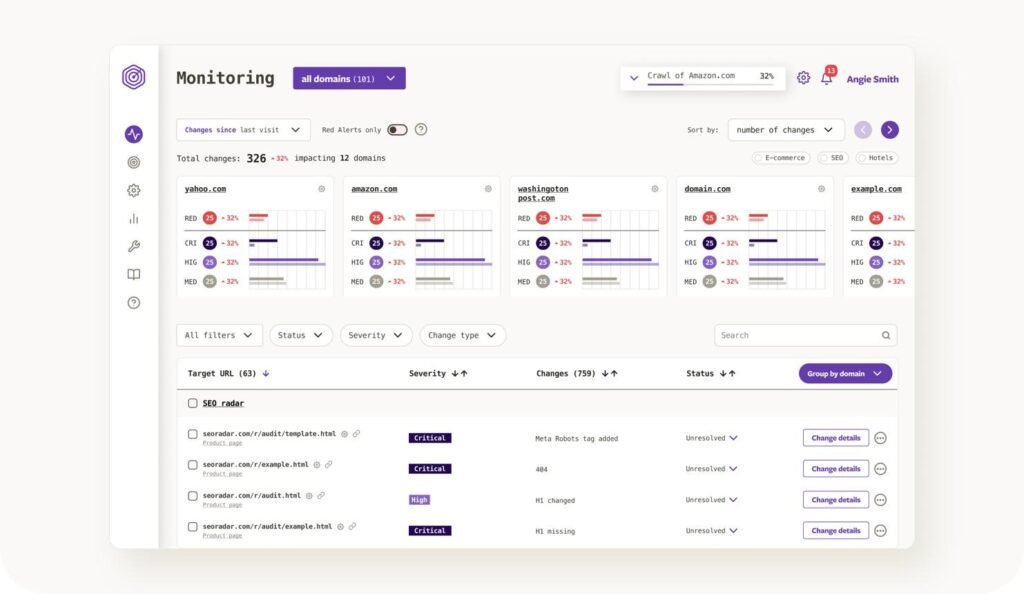
Google Search Console is useful for search and indexing issues.
Analytics can help you monitor traffic patterns.
A dedicated SEO platform can provide broader rank and technical monitoring.
The exact tools matter less than having a system that tells you when something needs investigation.
What WordPress SEO should you automate?
A simple rule works well:
Automate repetition. Keep judgment manual.
Let software handle things like sitemap updates, image compression, recurring checks, schema templates, redirect management, and monitoring.
Keep humans involved in decisions such as:
- Which keywords to target
- What search intent means for the article
- Which internal links make sense
- Whether an old page should be updated or removed
- Whether a redirect is actually relevant
- What content deserves more investment
That’s where SEO gets strategic.
A simple WordPress SEO automation workflow
You don’t need 15 plugins and a complicated automation platform.
Start with the basics.
Keyword research
      ↓
Content creation
      ↓
SEO checks
      ↓
Internal linking
      ↓
Image optimization
      ↓
Schema
      ↓
Publish
      ↓
Sitemap update
      ↓
Search monitoring
      ↓
Content review
Once that workflow works, automate the repetitive parts one at a time.
For example, start with your sitemap and image compression.
Then add redirect management.
Then monitoring.
Then content-review reminders.
This keeps your WordPress setup easier to troubleshoot.
The biggest SEO automation mistake
The biggest mistake is automating decisions that require context.
A plugin can see that 2 articles contain the phrase “technical SEO.”
It doesn’t automatically understand whether those articles should link to each other.
A tool can generate a meta description.
It doesn’t know whether the description actually matches what a searcher expects from the page.
And AI can generate 50 articles in a day.
That doesn’t mean you should publish all 50.
SEO automation works best when it removes repetitive work from your workflow. You still decide what gets published, what gets changed, and what deserves your attention.
That’s how you put WordPress SEO on autopilot without handing the steering wheel to a plugin.