
If you’re changing URLs on your WordPress website, deleting old pages, updating permalinks, or redesigning parts of your site, there’s one thing you can’t afford to ignore: redirects.
Without a proper redirect plan, visitors land on a “Page Not Found” error, broken links stay broken, and the traffic your old pages earned over time slowly fades away.
This guide explains what redirects are, why redirect planning matters for SEO, and how AIOSEO 4.9.1 helps you plan and manage redirects more practically from your WordPress dashboard. By the end, you’ll know exactly how to use redirects the right way to protect your traffic, links, and user experience.
What Are Redirects and Why Do They Matter for SEO?
A redirect tells browsers and search engines: “This old URL no longer exists. Go to this new URL instead.”
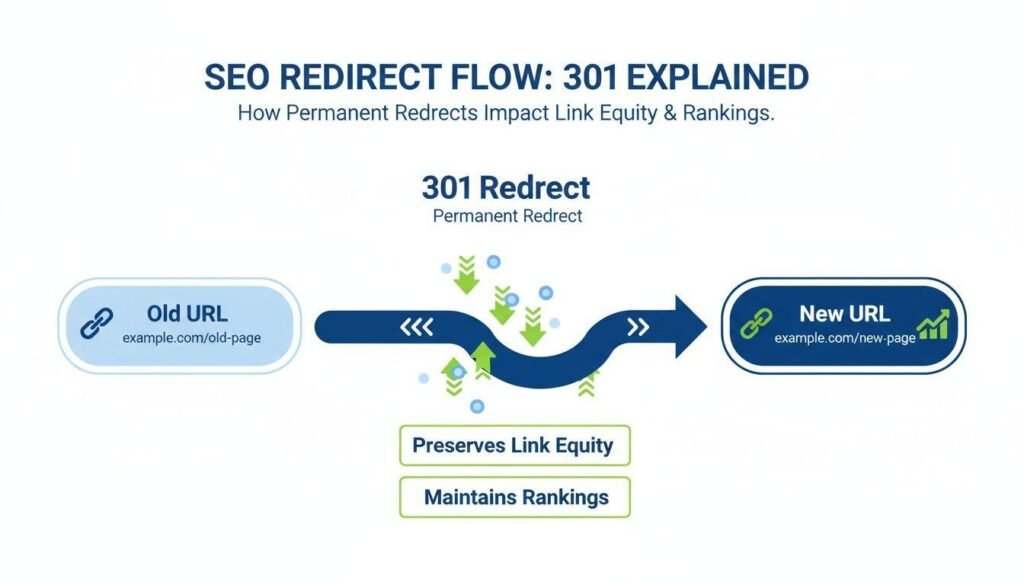
Instead of showing a 404 error, the visitor is automatically sent to the correct page. Search engines also learn about the new location of that URL.
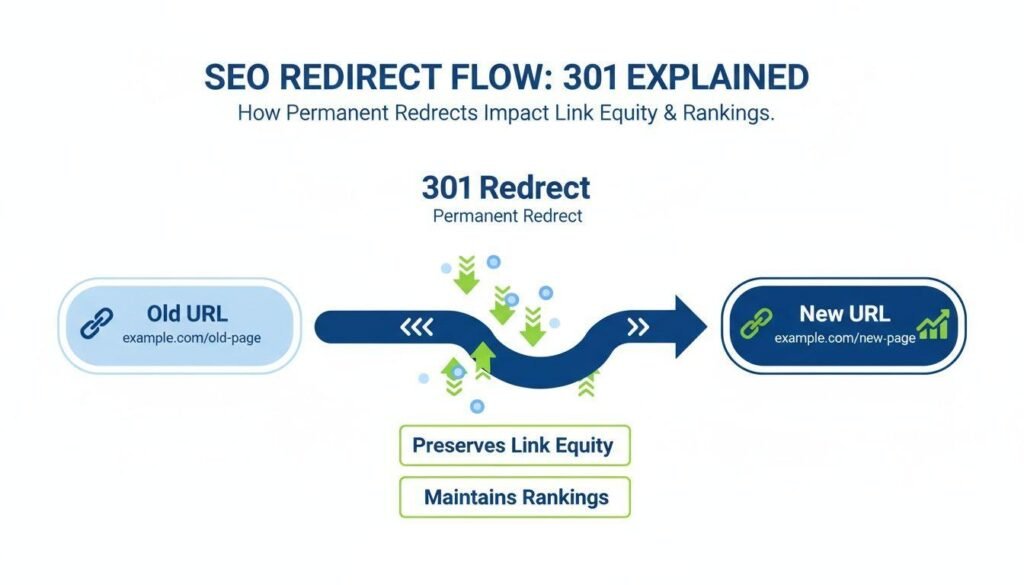
The most commonly used redirect for SEO is the 301 redirect. A 301 means the move is permanent. When used correctly, it helps pass much of the existing link equity from the old URL to the new one.
Other redirects exist too, like a 302 redirect, which is meant for temporary moves only.
Redirects matter for SEO because they directly affect three things:
- User experience – People reach the page they were looking for, not an error page.
- Link value – Backlinks pointing to old URLs still point users and search engines towards your updated page.
- Crawl efficiency – Search engines spend less time hitting non-existing URLs and can focus on pages that actually exist.
In simple terms: if you change a URL, you need a redirect plan.
What Is a Redirect Planning Strategy?
Many website owners only think about redirects after they see a long list of 404 errors in Google Search Console. The smarter approach is to plan redirects before making URL changes.
A redirect planning strategy is simply deciding, in advance, which old URLs should point to which new URLs before you delete, rename, or restructure them.
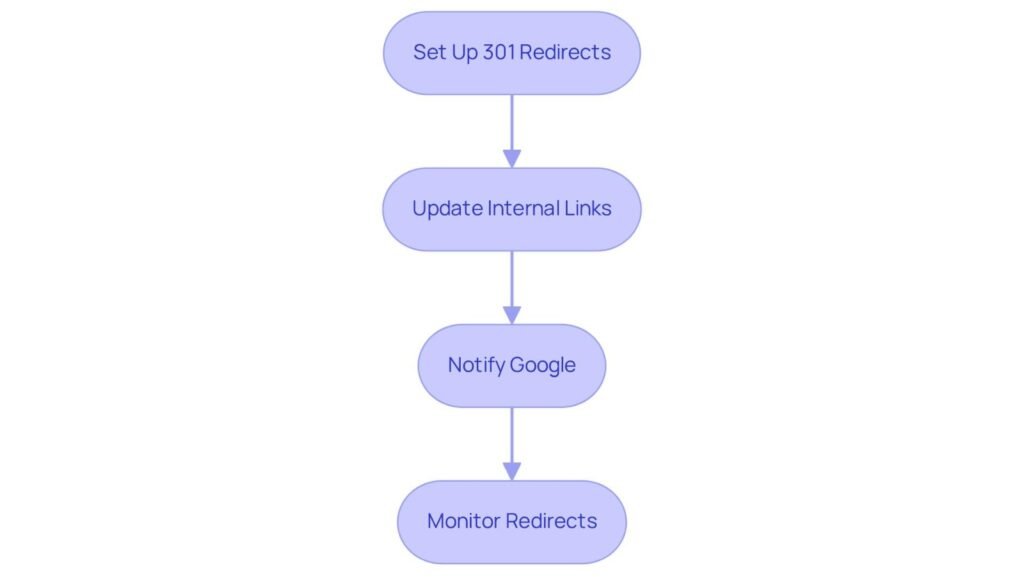
Instead of fixing broken links one by one later, you already know the correct destination for every URL you’re changing.
A good redirect plan answers three questions:
- Which URLs are changing? (posts, pages, categories, tags, or custom URLs)
- Where should each one go? (to the most relevant, existing page)
- Which type of redirect should I use? (usually a 301 for permanent changes)
The goal isn’t to redirect every old URL to your homepage. It’s to redirect each old URL to the closest and most relevant new page.
What Is AIOSEO and Its Redirects Manager?
All in One SEO (AIOSEO) is one of the most widely used SEO plugins for WordPress. It helps website owners handle everyday SEO tasks from one place, including titles, meta descriptions, sitemaps, schema, and redirects.
One of its practical tools is the AIOSEO Redirects Manager. Found inside the AIOSEO dashboard, it lets you create, manage, monitor, and control redirects without editing your .htaccess file or adding extra redirect-only plugins.
With AIOSEO 4.9.1, the focus around redirects leans more towards planning, visibility, and control. Rather than only fixing 404 errors after they happen, it helps WordPress users stay ahead by managing redirects as part of their overall SEO planning.
Note: This article focuses on the practical use of redirects within AIOSEO for SEO planning purposes. It explains how the Redirects Manager can support a proactive redirect strategy, not every technical change between plugin versions.
How AIOSEO 4.9.1 Enhances Your Redirect Planning Strategy
The real value of redirects isn’t just creating them. It’s planning them at the right time. AIOSEO 4.9.1 helps bring that planning into your normal WordPress SEO workflow.
Here’s how it enhances your redirect planning strategy in practice:
1. Keeps Redirects in One Central Place
Instead of using code or multiple tools, all of your redirects stay inside your WordPress admin area. This makes it easier to review your redirect plan, check existing redirects, and avoid creating duplicates.
2. Helps You Act Before Losing Traffic
With a clear view of redirects, you can map old URLs to new ones right when you’re updating your site structure. This turns redirects from a “fix” into a planned step during any URL change.
3. Gives Better Control Over 301 and 302 Redirects
AIOSEO’s Redirects Manager lets you choose the correct redirect type based on your goal. For permanent URL changes, a 301 redirect is the correct choice in most SEO cases. For short-term changes, a 302 redirect fits better. Knowing and choosing the right one is an important part of a careful redirect strategy.
4. Helps Catch and Manage 404s Proactively
When pages are removed or renamed, 404 errors naturally appear. The Redirects Manager helps you spot those URLs and redirect them to the most relevant page. This keeps your redirect planning realistic instead of guessing later.
5. Prevents Redirect Confusion as Your Site Grows
As blogs and business websites grow, they often update old posts, merge content, or change category URLs. Having redirects managed inside AIOSEO keeps your redirect list organised, so your strategy stays manageable over time.
6. Saves Time During Site Updates
If you’re updating permalinks, improving URL slugs, or cleaning up old content, planning redirects through AIOSEO means you don’t need to leave WordPress to handle this important SEO task.
When Should You Create a Redirect Plan?
You don’t need redirects for every small edit. You only need them when the actual URL changes, or when a URL no longer exists.
Here are the most common real-life situations where redirect planning should be part of your SEO checklist:
| Situation | Why You Need Redirects | Suggested Redirect Type |
|---|---|---|
| Changing a post or page slug | Old URL will return 404 | 301 (Permanent) |
| Updating your permalink structure | Many URLs change at once | 301 (Planned one by one or by priority) |
| Merging two blog posts into one | The weaker or outdated URL becomes unnecessary | 301 to the updated, complete post |
| Deleting an outdated page | Visitors and backlinks still reach it | 301 to the most relevant page |
| Moving a page to a new URL after content update | Old link needs to point to new location | 301 (Permanent) |
| Rebranding or changing page names | URLs with old terms need updating | 301 to updated page |
| Fixing old campaign or resource URLs | Still get clicks from old links | 301 to relevant resource |
Golden rule: If people or websites link to that URL, or if it appears in search results, it needs a redirect plan before removing it.
Step-by-Step: How to Use AIOSEO 4.9.1 to Plan and Manage Redirects
The key to using AIOSEO for redirect planning is to map first, create second. Don’t create redirects blindly. Follow this practical process.
Step 1: Find URLs That Need Redirecting
Before creating anything, make a simple list.
Use these sources to find URLs worth redirecting:
- Google Search Console – Check Pages > Not indexed or top pages to see which old URLs still matter.
- Old post list – Review posts you’re merging, renaming, or deleting.
- Existing backlinks – Focus on URLs that actually have links pointing to them.
- AIOSEO Redirects Manager (404 Logs) – Review URLs returning 404s over time.
You only need to redirect URLs that still bring value: traffic, backlinks, or impressions.
Step 2: Open AIOSEO Redirects Manager
In your WordPress dashboard, go to:
All in One SEO > Redirects
This is where you’ll plan and manage all redirects for your site. From here, you can add new redirects, review your redirect list, and monitor 404s.
Step 3: Create Your Redirect Map
Before adding redirects inside AIOSEO, create a simple redirect map on a note or spreadsheet.
Use this format:
| Old URL (Source URL) | New URL (Target URL) | Reason | Redirect Type |
|---|---|---|---|
| /old-seo-checklist/ | /seo-checklist-for-beginners/ | Updated slug to match search intent | 301 |
| /free-seo-tips/ | /practical-seo-tips-for-beginners/ | Merged with better guide | 301 |
| /website-audit-guide/ | /wordpress-seo-audit-guide/ | Made more specific for audience | 301 |
This mapping is your actual redirect planning strategy. Doing this first keeps your redirects relevant and avoids sending everything to your homepage.
Step 4: Add Redirects in AIOSEO 4.9.1
Now, add each mapped redirect one by one.
Inside AIOSEO > Redirects:
- Select Redirect Type – Choose
301 Moved Permanentlyfor permanent URL changes. - Add Source URL – Enter the old URL path (not the full domain in most cases).
- Add Target URL – Enter the exact new URL you want visitors and search engines to go to.
- Click Add Redirect to save it.
Do this for your priority URLs first — especially ones with backlinks or existing search visibility.
Step 5: Test Your Redirects
After adding them, test every important redirect before moving to the next task.
Do a quick manual check:
- Open the old URL in an incognito browser – it should go directly to the correct new page.
- Click through from internal links if updated.
- Test on mobile and desktop to be sure it loads correctly.
Testing takes minutes, but it prevents redirect loops or sending users to the wrong page.
Step 6: Review and Keep Your Redirect Plan Updated
Redirect planning isn’t a one-time task. Make it part of your SEO routine.
After big changes like content updates, site restructuring, or URL cleanups, review your redirect list in AIOSEO. Focus on keeping it clean, relevant, and free of unnecessary redirects.
Practical Example: Planning Redirects Before Updating a Post URL
Let’s look at a realistic example for a beginner SEO blog.
Scenario:
You have an existing post: yourdomain.com/seo-tips/
You realise the slug is too short. After planning for better clarity and intent, you decide to change it to: yourdomain.com/practical-seo-tips-for-beginners/
Without a redirect plan: Anyone clicking an old link, or visiting from Google, sees a 404 error.
With AIOSEO 4.9.1 redirect planning:
- Add a 301 redirect from
/seo-tips/to/practical-seo-tips-for-beginners/ - Update any internal links pointing to the old URL
- Let search engines know the page has permanently moved to its new location
Result: Visitors reach the correct post, existing links stay useful, and you keep the value tied to your updated URL.
Best Practices for Redirect Planning with AIOSEO
To get the most out of redirects for SEO, follow these practical best practices.
- Redirect to the most relevant page – Never default to your homepage unless there’s truly no related page.
- Use 301 for permanent changes – Only use 302 for genuinely temporary moves.
- Avoid redirect chains – A redirect chain happens when URL A → URL B → URL C. Keep it direct: A → C.
- Avoid redirect loops – A loop sends users back and forth between URLs. Always test after adding redirects.
- Prioritise URLs with value – Focus first on URLs with backlinks, organic clicks, or impressions.
- Update internal links – After creating a redirect, update your internal links to point directly to the new URL. Redirects work, but direct links are cleaner.
- Keep your redirect list intentional – Don’t redirect every removed URL. Only redirect those that still receive traffic or links.
- Think ahead before deleting content – Before hitting “Trash” on a post or page, check if it needs a redirect plan.
- Be selective with old category/tag URLs – Only redirect them if they have real SEO value.
- Review 404 logs regularly – Use the 404 view inside AIOSEO Redirects to spot new opportunities for planned redirects.
AIOSEO 4.9.1 Redirects: Benefits, Limitations & Realistic Expectations
It’s helpful to look at this tool with a balanced view. AIOSEO’s Redirects Manager is built to support redirect planning for WordPress users, but it has clear strengths and natural limitations.
Key Benefits
- All-in-one workflow – Manage redirects without leaving your SEO plugin.
- Beginner-friendly interface – Clear fields for source, target, and redirect type.
- Focus on practical redirect management – Helps move from reactive fixing to proactive planning.
- Saves time during site changes – Ideal when updating slugs, permalinks, or merging content.
- Keeps SEO tasks in one dashboard – Less reliance on multiple tools.
Realistic Limitations
- Works best inside WordPress – It’s designed for WordPress websites using AIOSEO.
- Needs manual planning – The plugin helps you manage redirects, but you still need to decide which old URL goes to which new URL.
- Not a replacement for redirect strategy – Mapping and relevance still require human judgement.
- Large-scale migrations still need a full plan – For thousands of URLs, you’ll still need a clear redirect map first.
Pragmatic view: AIOSEO 4.9.1 doesn’t “auto-redirect” every change. What it does is make redirect planning easier, faster, and more organised directly inside WordPress.
Redirect Planning Checklist for WordPress SEO
Before making any URL changes, run through this quick checklist:
- List all URLs you plan to change or remove
- Check which of those URLs get clicks or impressions in Google Search Console
- Find which ones have backlinks
- Create a redirect map (Old URL → New URL + Reason)
- Only map to the most relevant existing page
- Use 301 for permanent changes
- Add redirects in AIOSEO > Redirects
- Update direct internal links to new URLs
- Test key redirects in incognito
- Monitor 404s after publishing changes
Using this checklist turns redirect planning into a repeatable habit for better WordPress SEO.
Conclusion
Redirects may seem like a small technical task, but they play a big role in protecting your website’s traffic, links, and user experience. The mistake most site owners make is fixing them too late.
The key is to plan redirects before you change or remove any URL.
AIOSEO 4.9.1 enhances your redirect planning strategy by bringing the Redirects Manager, 404 awareness, and redirect control into one simple place inside WordPress. It helps you move from reactive 404 fixing to a more proactive, SEO-aware approach.
Your next step: Before your next URL change, don’t just update the slug. First, build a 5–10 URL redirect map. Then, add those redirects through AIOSEO’s Redirects Manager. That’s the easiest way to keep your SEO gains safe from day one.
9. FAQs
1. What are redirects in WordPress SEO?
Redirects send visitors and search engines from an old URL to a new URL. For SEO, they help prevent 404 errors and preserve link value when URLs change or pages are removed.
2. Why is redirect planning important before changing URLs?
Redirect planning helps you map old URLs to the most relevant new URLs before making changes. This prevents broken links, protects existing traffic, and saves time fixing errors later.
3. How does AIOSEO 4.9.1 help with redirect planning?
AIOSEO 4.9.1’s Redirects Manager lets you create, manage and review redirects directly from WordPress. It helps you handle 301 and 302 redirects, review 404s, and keep your redirect strategy organised in one place.
4. Should I use a 301 or 302 redirect for permanent URL changes?
For permanent URL changes, use a 301 redirect. Use a 302 redirect only when the move is temporary and you plan to bring the original URL back.
5. Should I redirect old URLs to my homepage?
No. Always redirect to the most relevant existing page. Redirecting everything to your homepage creates a poor user experience and gives weak context to search engines.
6. Do I need a separate redirect plugin if I use AIOSEO?
If you already use AIOSEO, its built-in Redirects Manager is often enough for most blogs, business websites, and WordPress sites that need a practical redirect planning and management solution.